
Invitations to send online
Online invitations ready to share with your guests
Choose a design, add the details and prepare to send it. An image and an invitation link do different jobs: find the option that fits your event.
Choose a designLorena’s family

Hi! Here’s the party invitation.
Designs
Browse more designsStart with an invitation design
Choose the artwork and layout first. Sharing options come after you personalize the invitation.


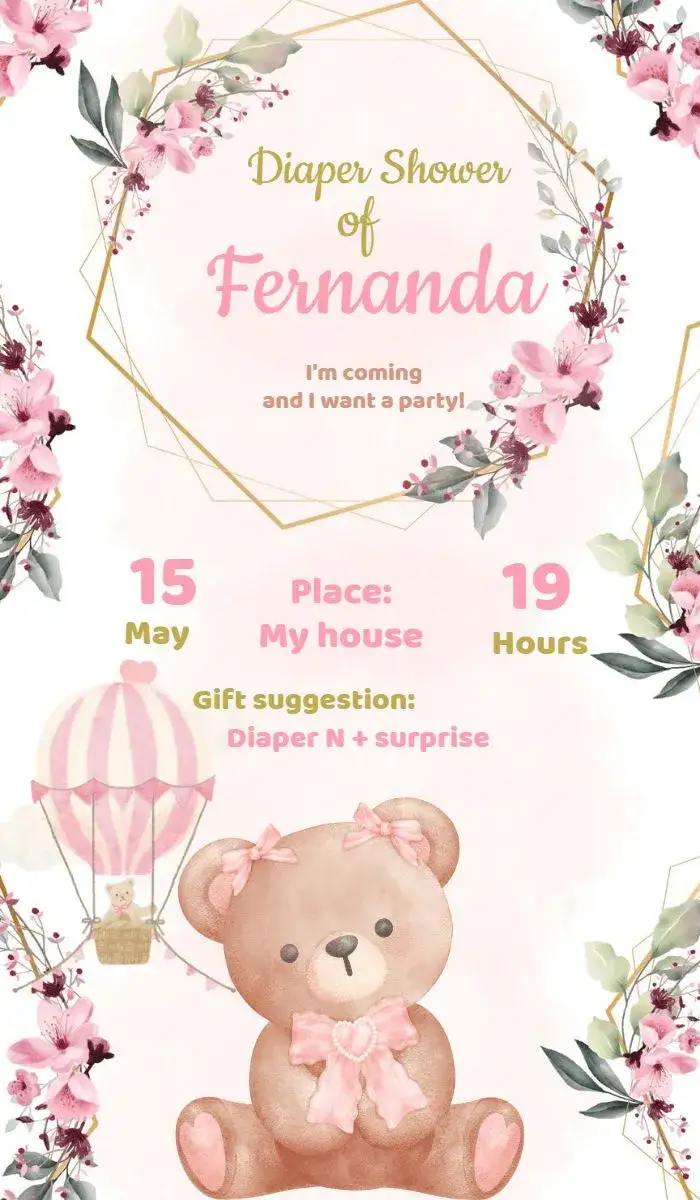



Before you choose
Images, links and RSVPs: the differences
Pick a way to share based on what your guests need to receive.
An invitation image
Attach the file to a message or email. The details are part of the image; a file you have already sent does not update automatically when you edit your design.
A shared preview link
The platform lets you share an invitation page. Check the image and the generated address before sending it; sharing a page is different from downloading a file.
RSVPs for your event
RSVPs require an event setup and a guest form. Explore the option in the editor and check the event details and unlock requirements before using it.
Step by step
How to create and send an online invitation
Finish the design and event details first, then choose how to share.
Choose the occasion and artwork
Search for a wedding, birthday, shower or another event. Compare designs and choose a layout with room for the information you need to send.
Personalize and check
Replace the sample details in the editor. Review the venue, date, time and any instructions guests need before the event.
Prepare your sharing option
Explore image downloads, shared links and RSVPs. Test your chosen option on another device before sending the invitation to everyone.
In practice
Choose the format your guests need
Think about how you will send it and whether you need to collect replies.
For a conversation
An image may be enough for a small gathering. Check it on a phone and send the final file rather than a screenshot of the preview.
For a shared page
Open the link while signed out of your account to see what guests will receive. Check the address in another browser too.
For counting replies
If you use RSVPs, check the form, deadline and event details. Send a test response to understand the guest’s experience.
Test before sharing the invitation
Use the same image or link your guests will receive.
- Read the event details on a phone.
- Open the shared link in another browser.
- Test the RSVP form if you have set one up.
- Send a new version if you correct an image already shared.
Browse the designs and try the editor first. Check the price and available unlock options before downloading your final file without a watermark.
Guides and tools
Invitation guides and practical tools
Invitation wording: customize and copy your message
Build invitation wording for birthdays, weddings, baby showers and graduations. Customize a sample and copy it into your invitation’s editable text fields.
Build your invitation messageHow to print invitations: size, aspect ratio and PDF
Estimate print dimensions and image resolution from pixels. Understand the editor’s one, two or four invitations per A4 PDF sheet options.
Estimate print size and image resolutionInvitations with RSVP: share an event confirmation link
Learn how to create an event from an edited invitation, review RSVP settings and send a published event link for guests to respond.
Prepare the message for your RSVP linkMore options
Find the right invitation for your plans
FAQ
Online invitation questions
Answers about designs, customization and the invitation you will send.
Does an online invitation always mean a webpage?
No. You can make the artwork in an online editor and send it as an image. Sharing an invitation page and setting up RSVPs are other options with different uses.
Can I send it through WhatsApp?
Yes. Use an unlocked final image or the sharing address available on the platform. Check the content and presentation before sending it to your contacts.
Does every design include an active RSVP form?
Do not assume RSVPs are automatic. Explore the editor’s option, configure the event and check the unlock requirements before sharing a confirmation link.
Will an image already sent update when I edit it?
An image attached to a conversation does not update automatically. If the details change, prepare a corrected file and send it again. Check the preview too when using a link.
Do guests need to install an app?
A shared link can be opened in a browser. If you send an image, guests receive it in the app or channel you used to share it.
How does payment work?
The price and unlock options are shown during the invitation flow. Check them before downloading the final file or activating features that require an unlock.
Choose a design for your next event
Add the details, then decide whether to send an image or set up link sharing.