
Browser-based invitation editor
Editable invitations in your browser
Start with a finished layout and personalize the elements available in that design. Check what is editable text and what belongs to the artwork before choosing.
See editable designs

Designs
Browse more designsOpen a design in the editor
Choose “Edit this design” to start, or “View details” to check the artwork before personalizing it.


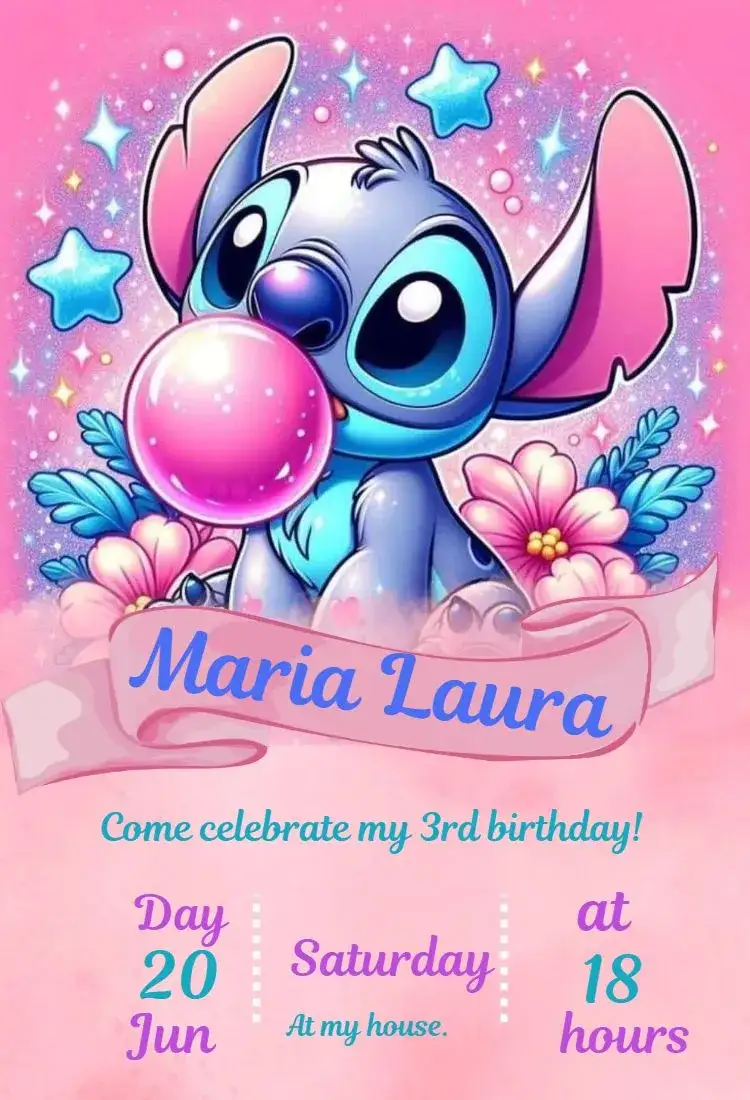


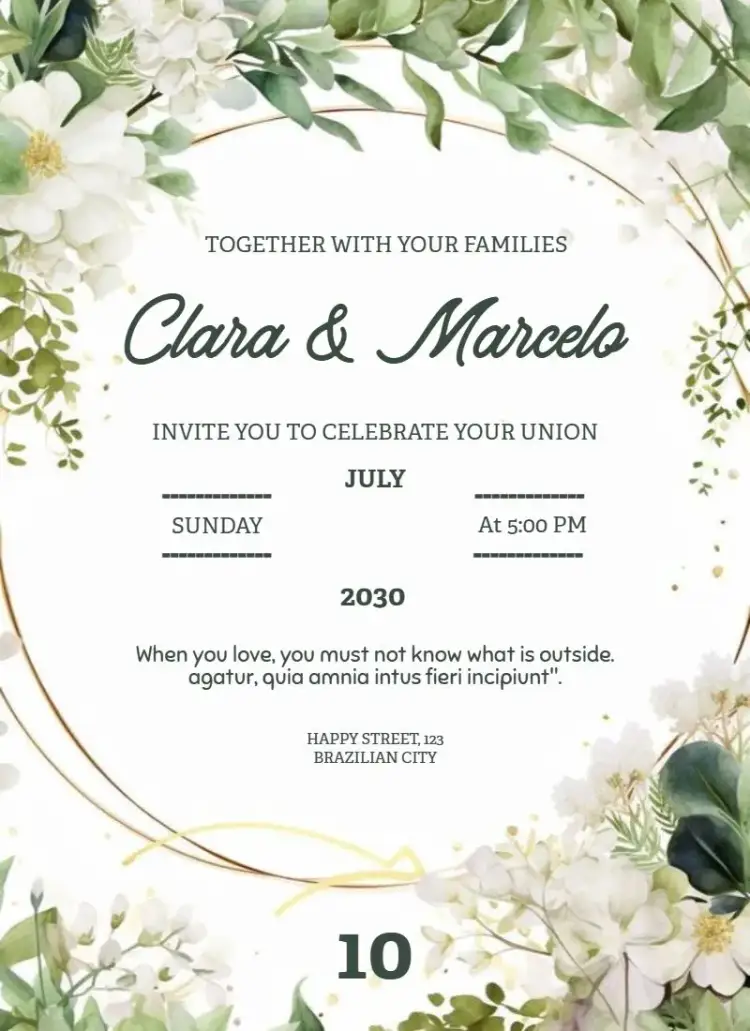

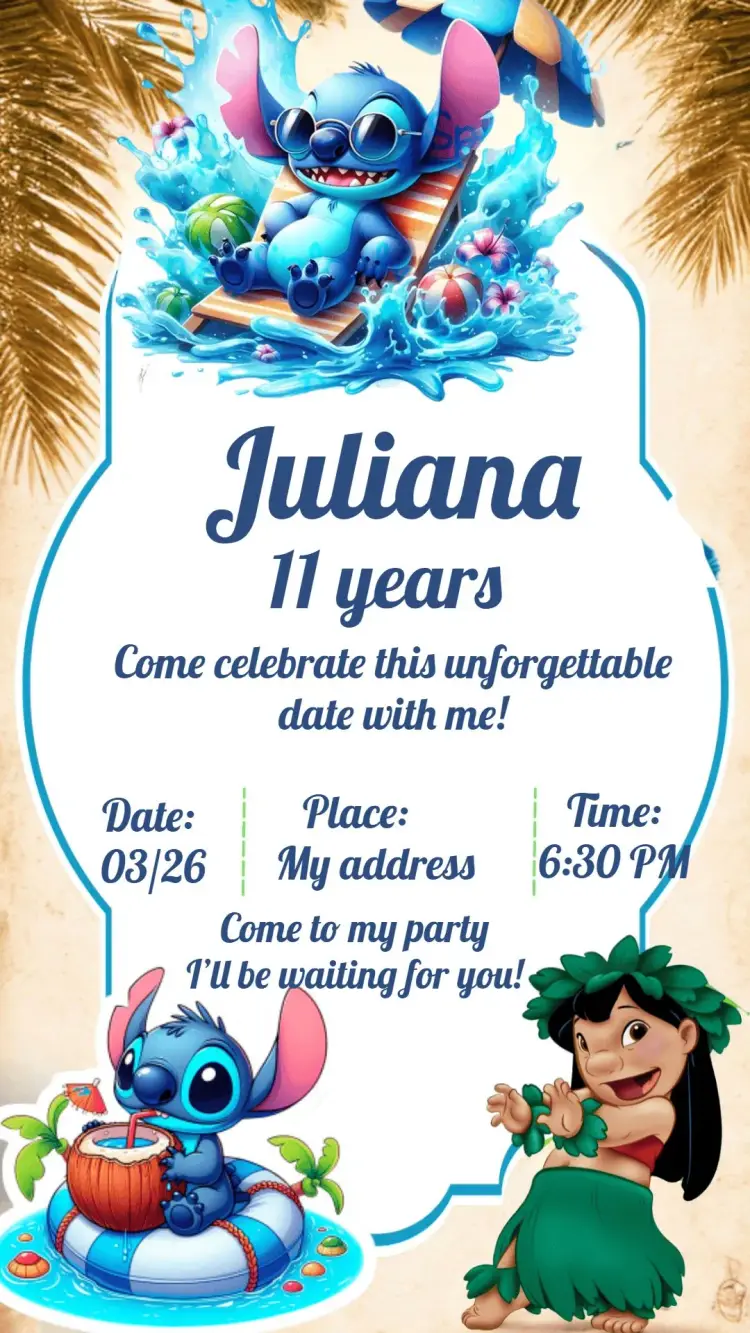
Before you choose
What can you edit in a design?
Your options depend on how the invitation’s elements were created.
Invitation text
Select editable text to replace the name, date, time and venue. Adjust its size and position when needed so a line is not cut off or covering other details.
Photos and elements
Use the available controls to add and position an image. Check its proportions and the space in the layout, especially when the artwork already has many details.
Background artwork
An illustration built into the background is not a separate text element. If you need to change a fixed part of the artwork, choosing another design may work better.
Step by step
How to edit a ready-made invitation
Work through the details so no sample information ends up in your final file.
Open the design you want
Compare previews and select “Edit this design”. Check the room for your text and photos before making changes.
Replace details one at a time
Start with the name, then the date, time, address and contact. Select each available element and check the smaller text areas too.
Save and review the result
Check the preview, unlock requirements and available file options. View the result on another screen to check readability and framing.
In practice
Avoid common customization problems
Check the layout after every major change.
When the name is longer
Reduce the lettering carefully or adjust its position. Do not force a line into the illustrations or beyond the edge of the artwork.
When you change a photo
Check the crop and proportions. Make sure the face and important details are visible and that the photo does not cover the event information.
When you want a different theme
Replacing the event details does not transform the whole illustration. Compare another design if your change involves characters or artwork built into the background.
Review your personalized invitation
The result should show your information, with nothing left from the sample.
- Every sample text has been replaced.
- The full name and address are visible.
- Photos and artwork do not cover the details.
- The preview is checked before unlocking and downloading.
Browse the designs and try the editor first. Check the price and available unlock options before downloading your final file without a watermark.
Guides and tools
Invitation guides and practical tools
Invitation wording: customize and copy your message
Build invitation wording for birthdays, weddings, baby showers and graduations. Customize a sample and copy it into your invitation’s editable text fields.
Build your invitation messageHow to print invitations: size, aspect ratio and PDF
Estimate print dimensions and image resolution from pixels. Understand the editor’s one, two or four invitations per A4 PDF sheet options.
Estimate print size and image resolutionInvitations with RSVP: share an event confirmation link
Learn how to create an event from an edited invitation, review RSVP settings and send a published event link for guests to respond.
Prepare the message for your RSVP linkMore options
Find the right invitation for your plans
FAQ
Editing invitation questions
Answers about designs, customization and the invitation you will send.
Is every detail in the artwork editable?
Not necessarily. Separate text and elements can be personalized, but characters, numbers and ornaments built into a background image may not be editable individually.
Do I need to install design software?
The editor runs in your browser. Open a design and use its available controls without installing a design program.
Can I edit on my phone?
Yes, you can open the editor in your phone’s browser. Zoom in to select small elements, then check the full preview before downloading.
Can I add a photo?
Use the image tools available in the editor. Choose a layout with space for a photo, then check the crop and contrast with the text.
How do I correct a detail later?
Return to the saved edit when it is available in your account and update the relevant element. If you have already sent an image, prepare and share the corrected file.
Does editing unlock the watermark-free download?
No. Personalizing a design and unlocking the final file are separate steps. Check the price and unlock options shown for the invitation.
Choose a starting point for your invitation
Open a design, check its elements and add your event information.