Birthday invitations with a photo area
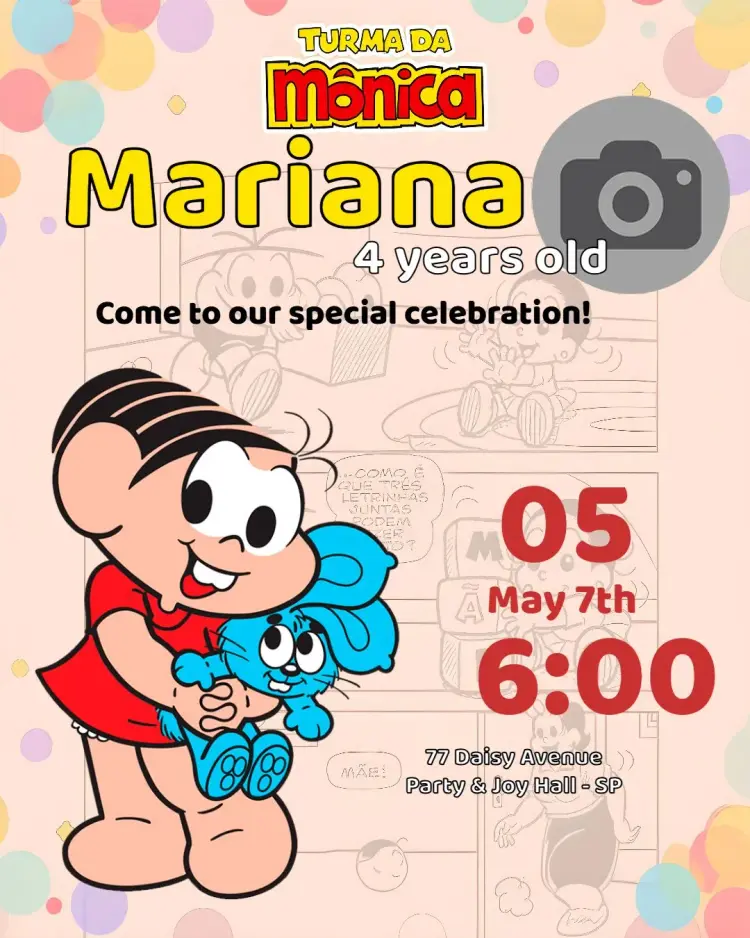
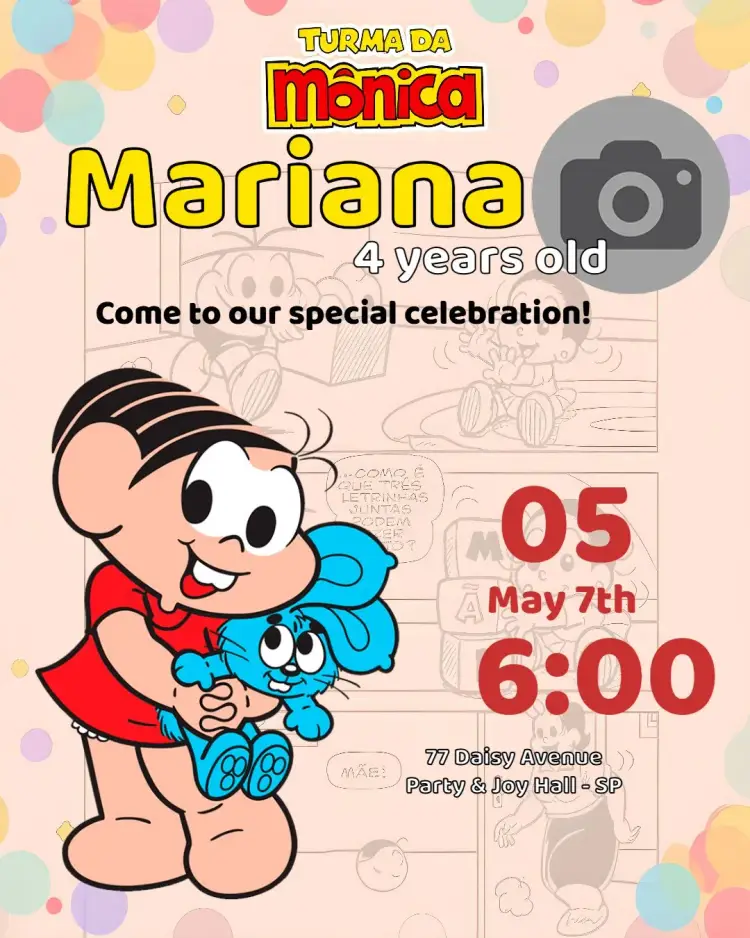
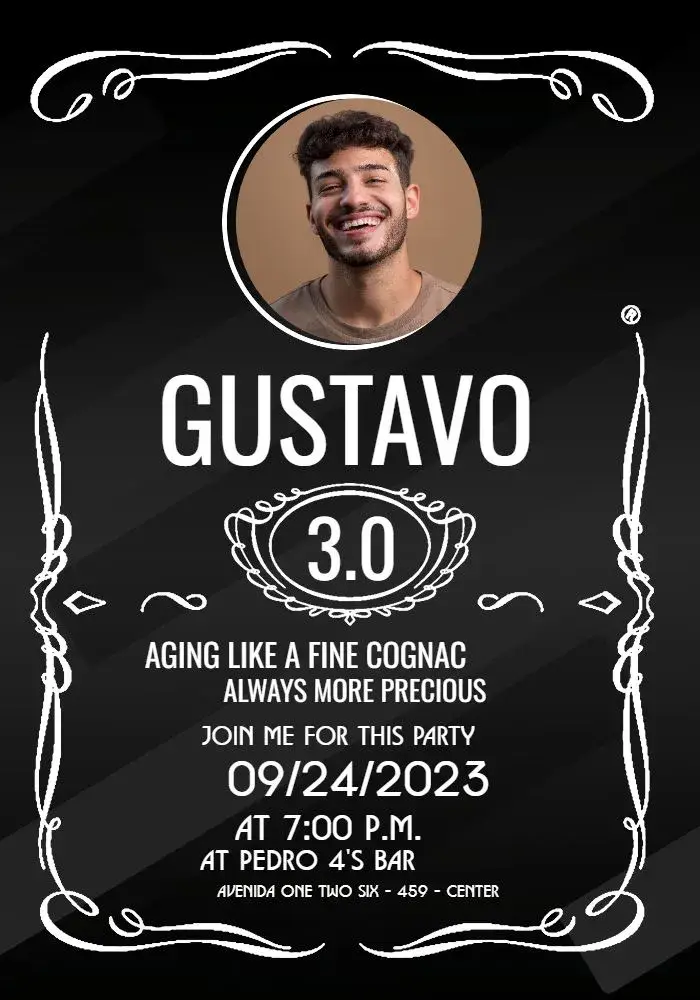
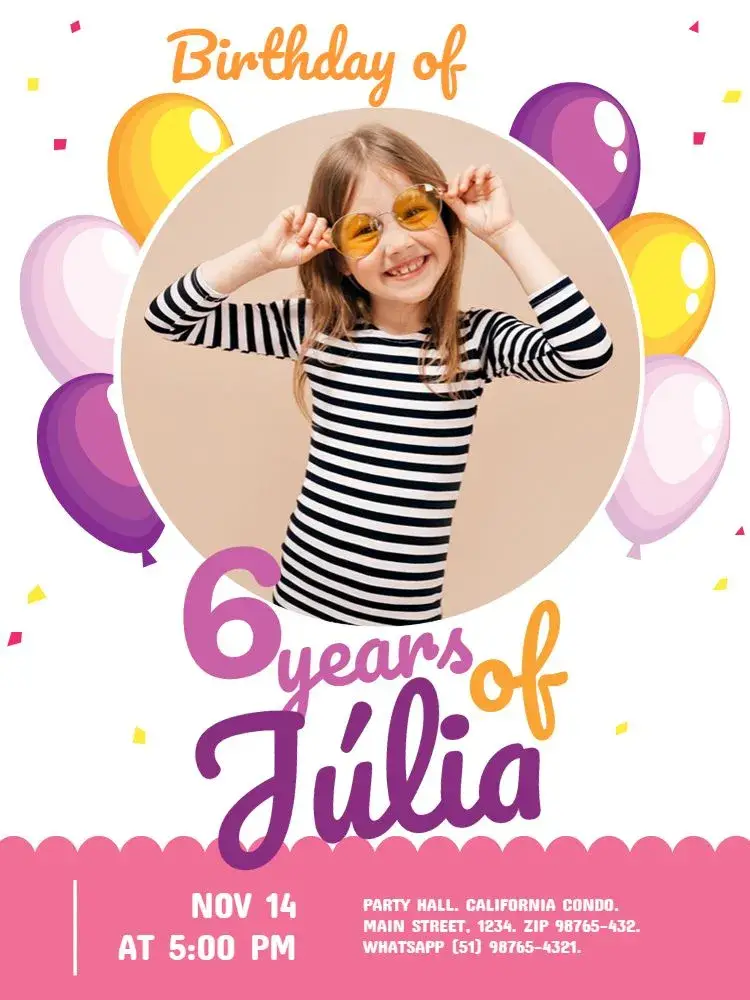
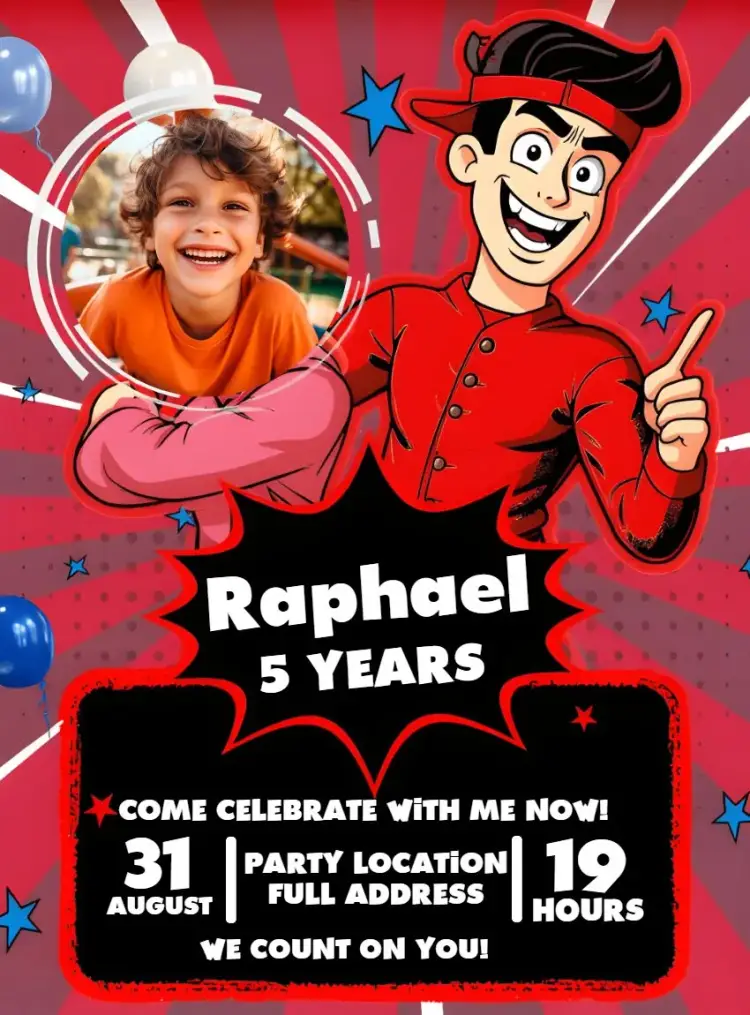
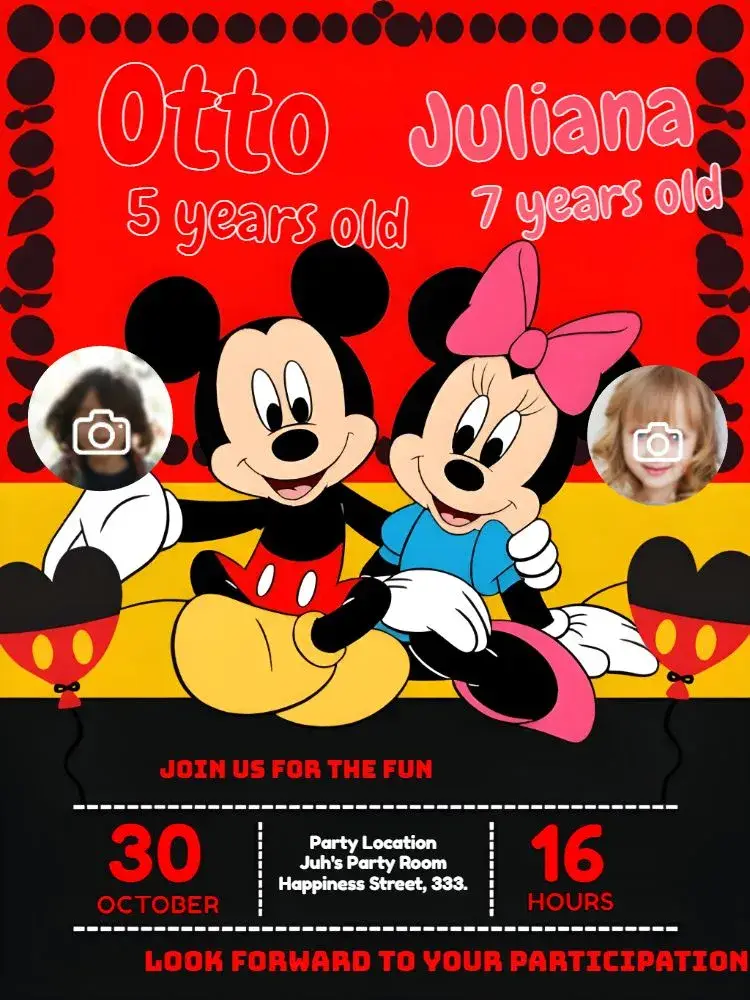
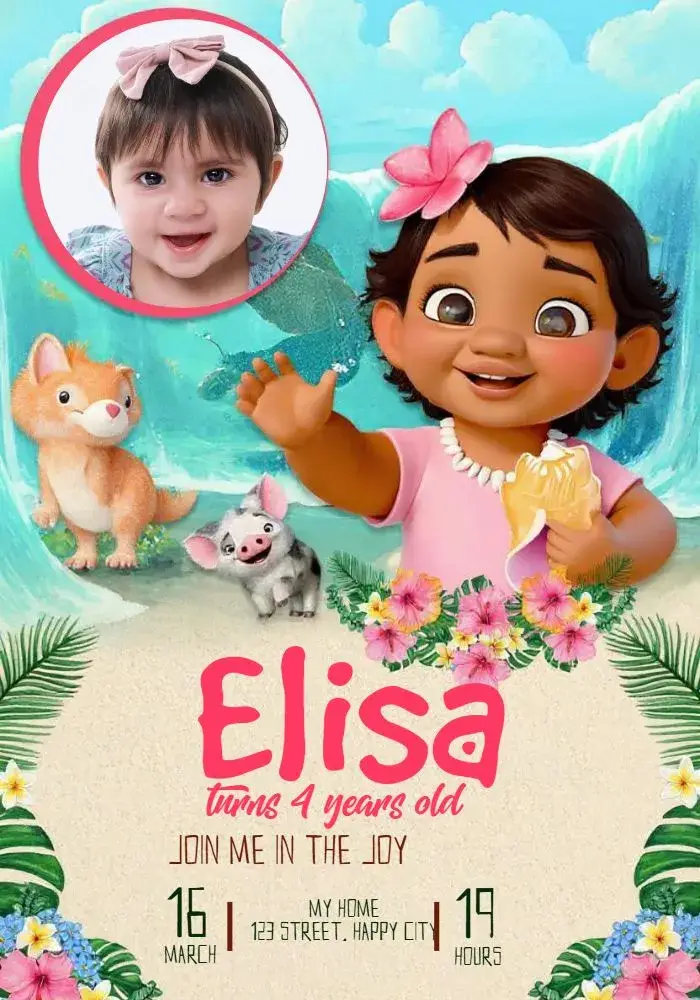
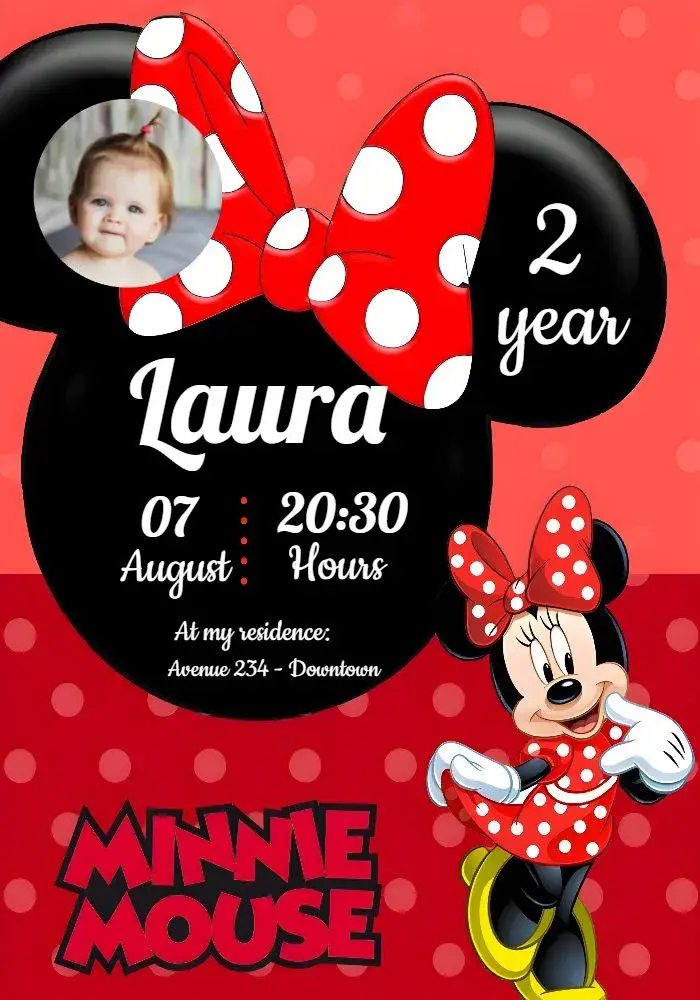
Compare birthday layouts with a photo area. Open the editor to check how your picture fits alongside the name and party details.
Curated templates
Choose a design, personalize the event details, and get your invitation ready to share.
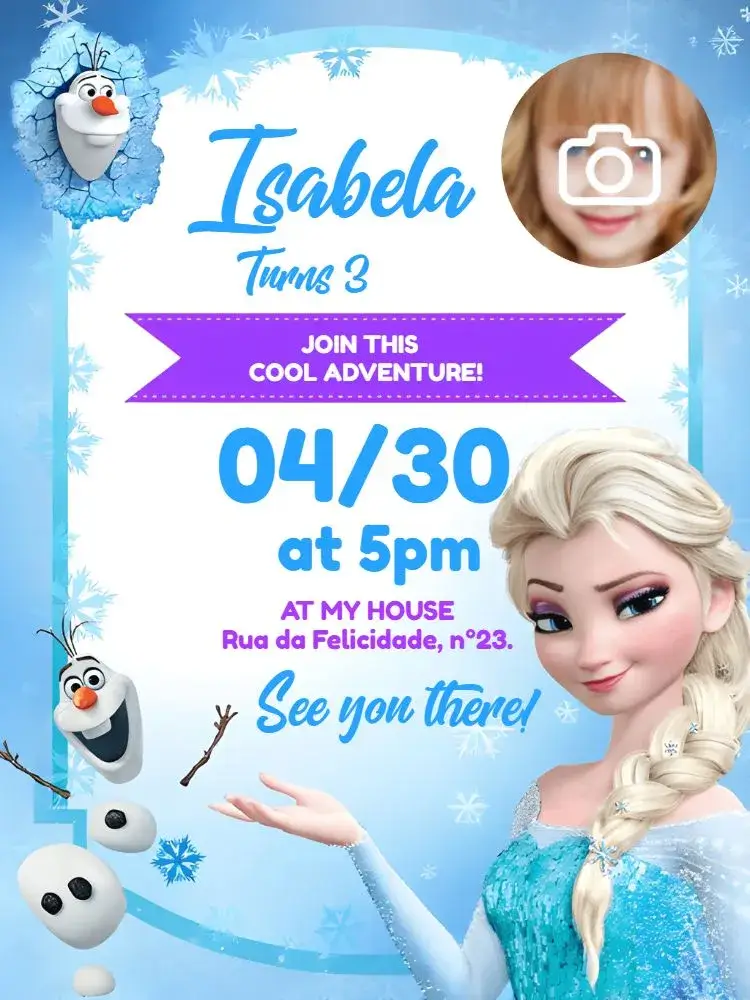

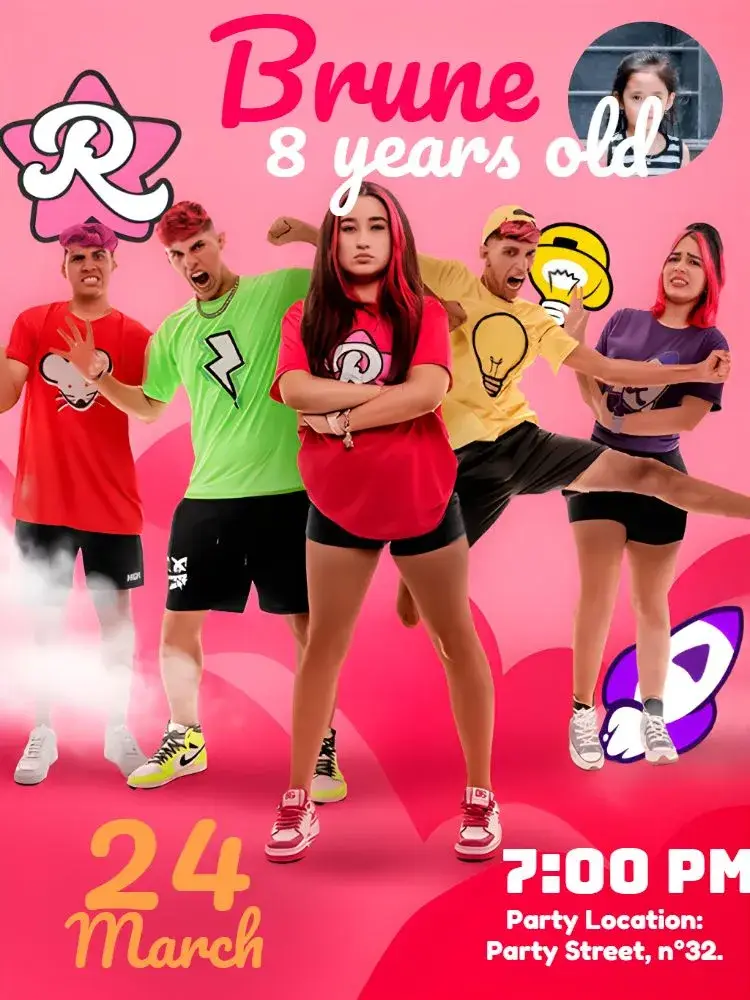


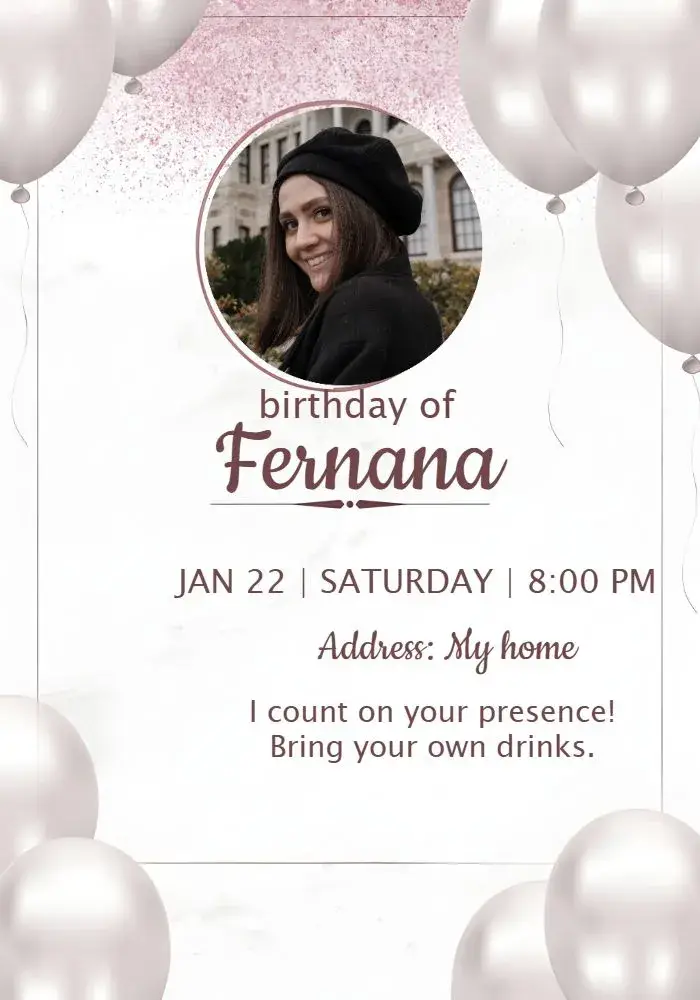
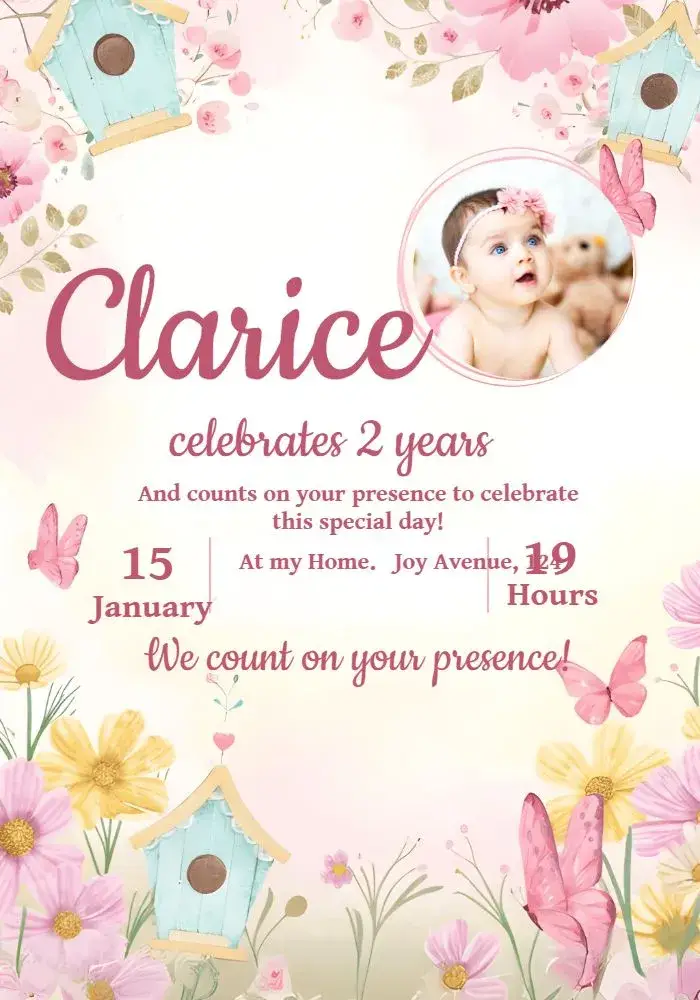


About this collection
Choose a photo layout before choosing a picture
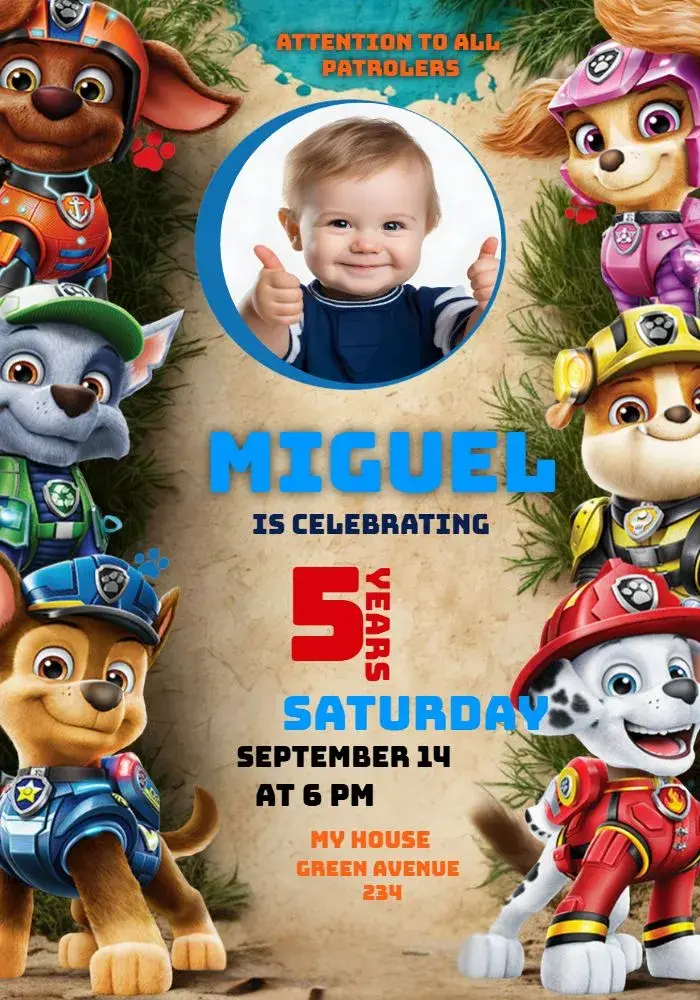
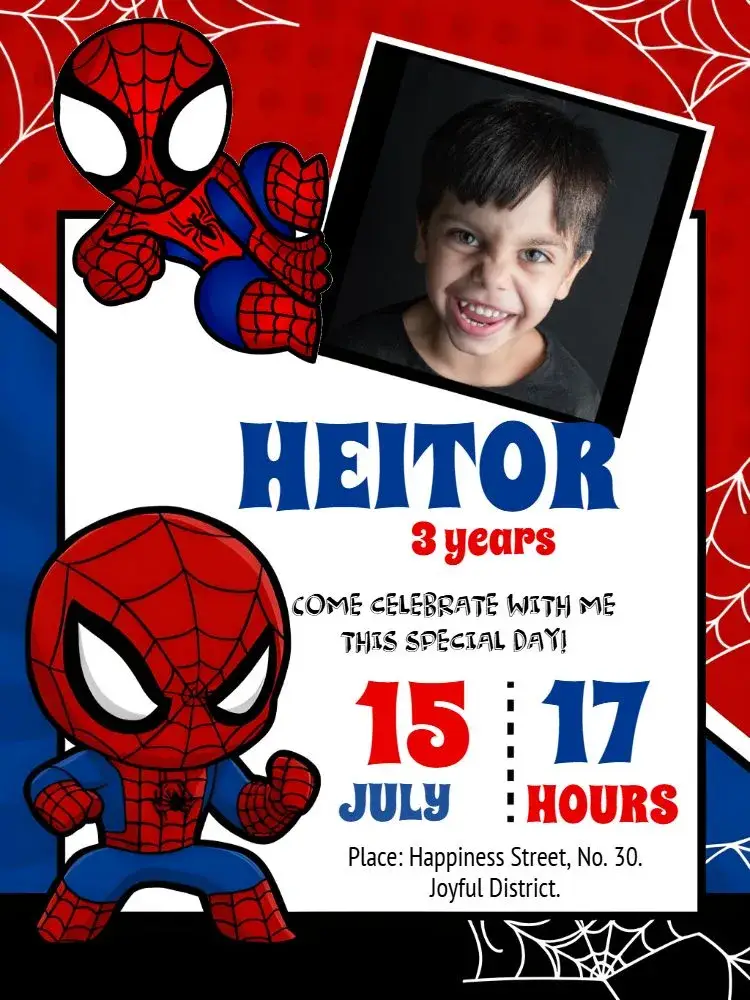
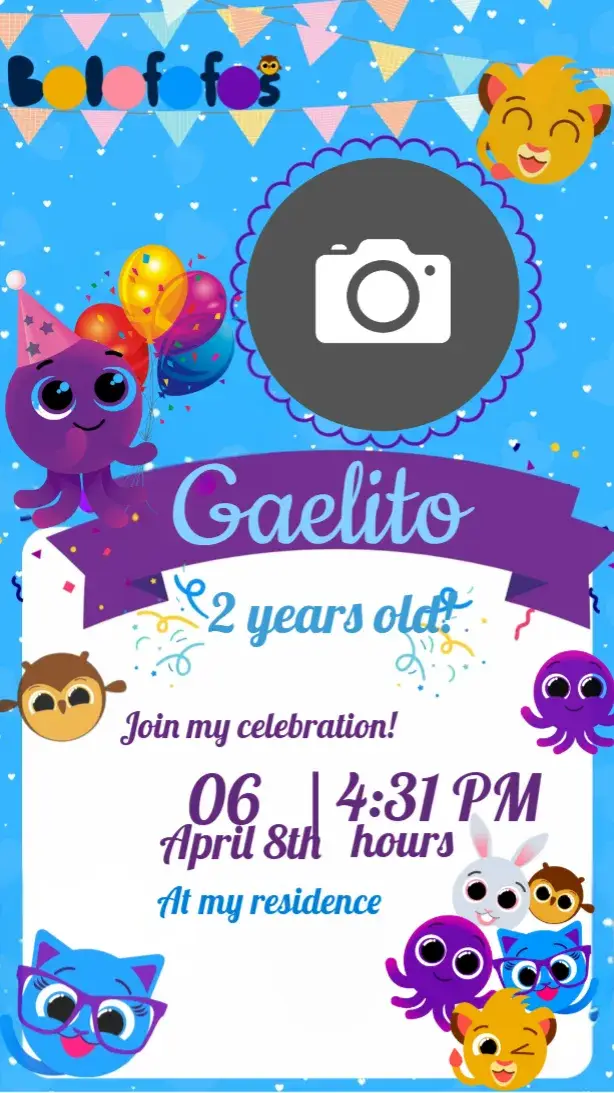
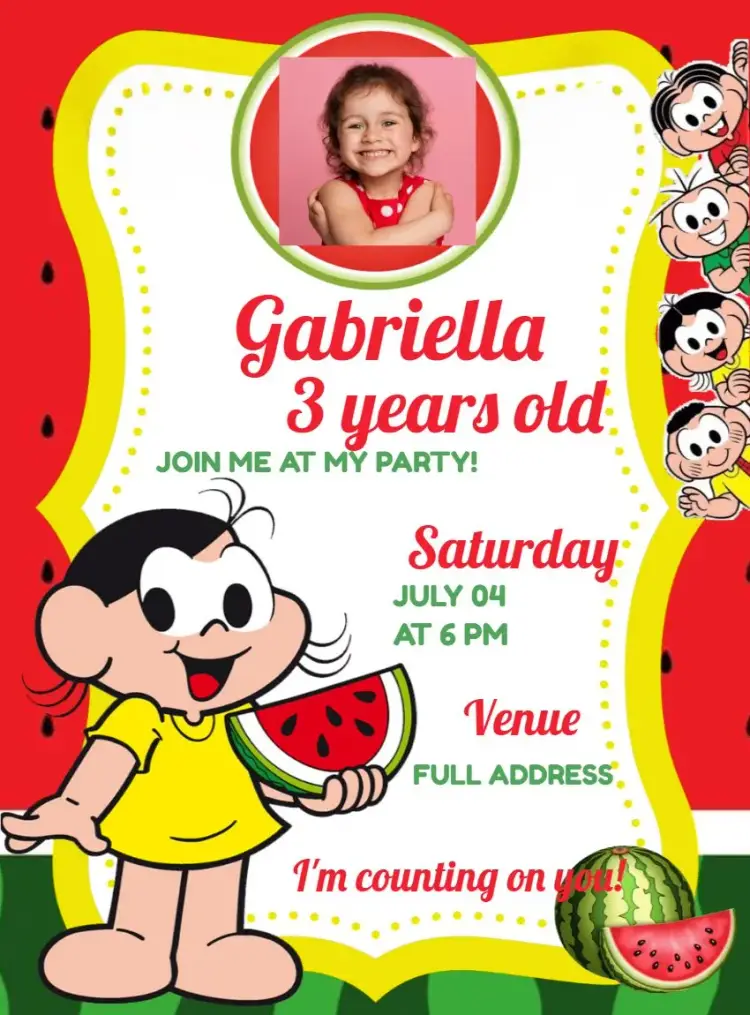
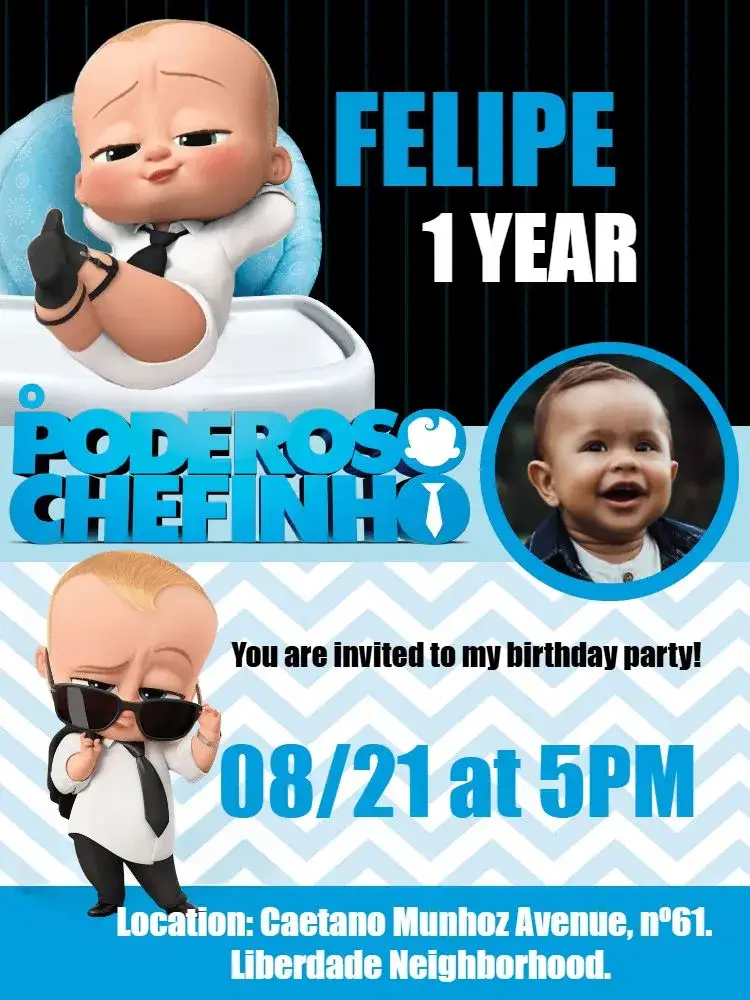
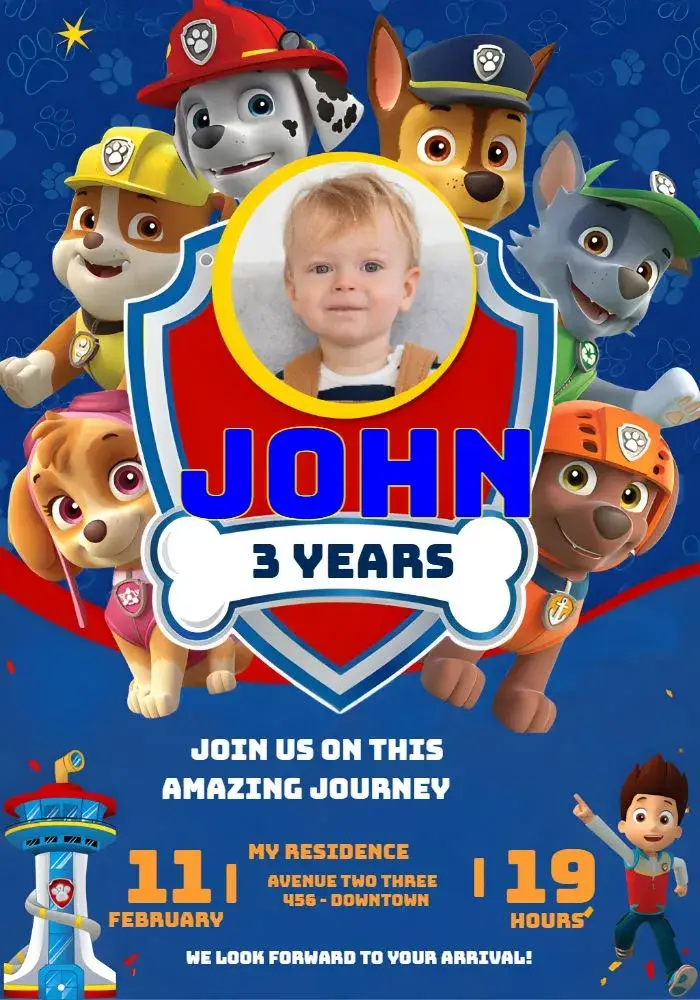
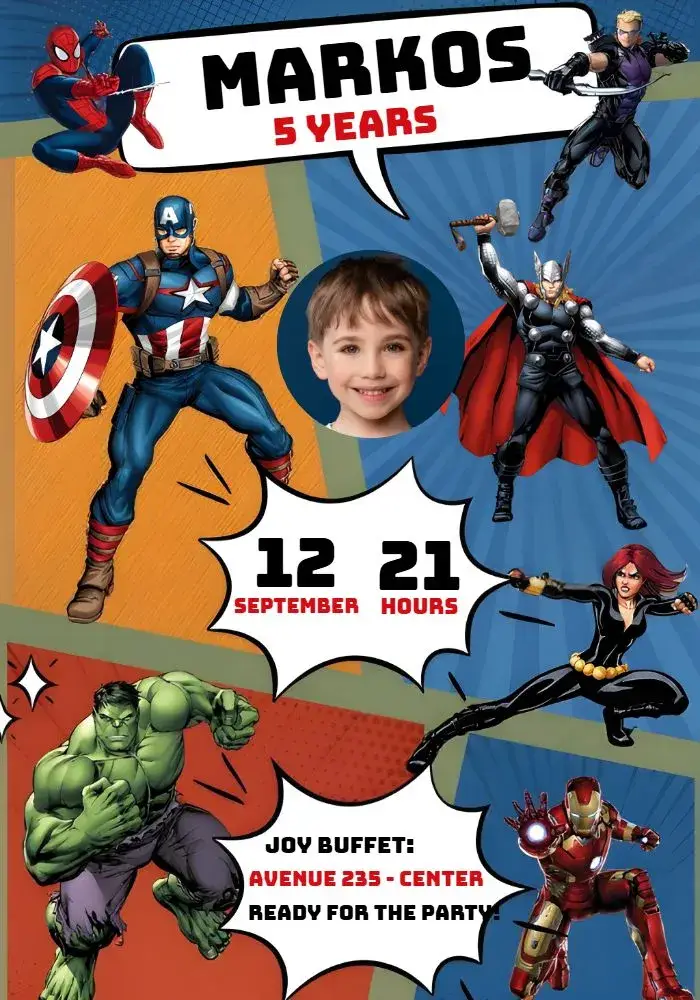
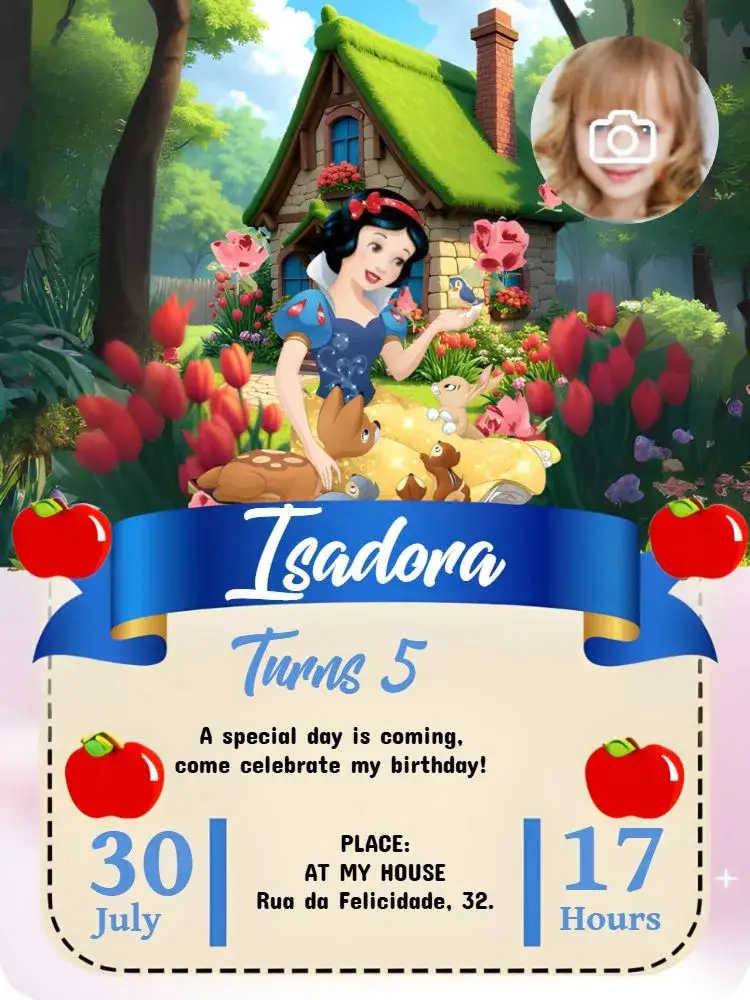
Compare the shape and position of the photo area and its relationship to the name, age and event details. A portrait may work differently in a circular frame or a wide landscape layout. Check the preview and editor options before assuming a photograph can replace a decorative illustration.
Review the crop and readability
Use a sharp image and check that the crop retains the face or subject you want to show. Do not let the photo cover date, time or address. Review the final invitation at phone size and, if printing, inspect it at the intended paper size before ordering multiple copies.
Example wording to adapt
Join us to celebrate [Name]’s birthday! [date], [time], [venue]. Please RSVP to [contact] by [deadline].
From the selected template to the editor
Open the chosen invitation page and inspect the preview before personalizing it. Replace sample details with [Name], [Month] [day], [year], [time] and [venue]. Photo, color and artwork changes depend on the template. Check the download options and conditions, then review the final version on a phone before sharing. Send maps and links in the accompanying message too: text inside an image is not automatically clickable.
Frequently asked questions
Does every birthday design support a personal photo?
No. This pilot requires a direct photo reference, and you still need to confirm the selected template’s editable photo area in the editor.
Which photograph should I choose?
Choose a sharp image with enough space around the subject for the intended crop. Check the frame before deciding between portrait and landscape photographs.
How can I check the photo before sharing?
Inspect the final invitation on a phone and confirm that the crop, name and event details remain clear. For paper copies, check the intended print size as well.
How do I open a chosen template in the editor?
Open the chosen invitation page and inspect the preview before personalizing it. Replace sample details with [Name], [Month] [day], [year], [time] and [venue]. Photo, color and artwork changes depend on the template. Check the download options and conditions, then review the final version on a phone before sharing. Send maps and links in the accompanying message too: text inside an image is not automatically clickable.
Explore related collections
Birthday invitations you can customize online
Compare birthday invitation designs, organize the name, date and venue, then open a template to personalize the details of your celebration.
Kids' birthday invitations to customize online
Compare kids' birthday invitation designs, organize the name, age and caregiver instructions, then open a template that suits the actual party.
Invitation wording: customize and copy your message
Build invitation wording for birthdays, weddings, baby showers and graduations. Customize a sample and copy it into your invitation’s editable text fields.
How to print invitations: size, aspect ratio and PDF
Estimate print dimensions and image resolution from pixels. Understand the editor’s one, two or four invitations per A4 PDF sheet options.
Invitations with RSVP: share an event confirmation link
Learn how to create an event from an edited invitation, review RSVP settings and send a published event link for guests to respond.
Create an invitation that feels like yours
Choose a template and edit the wording, colors, and event details directly in your browser.