Editable Mickey and Minnie invitations
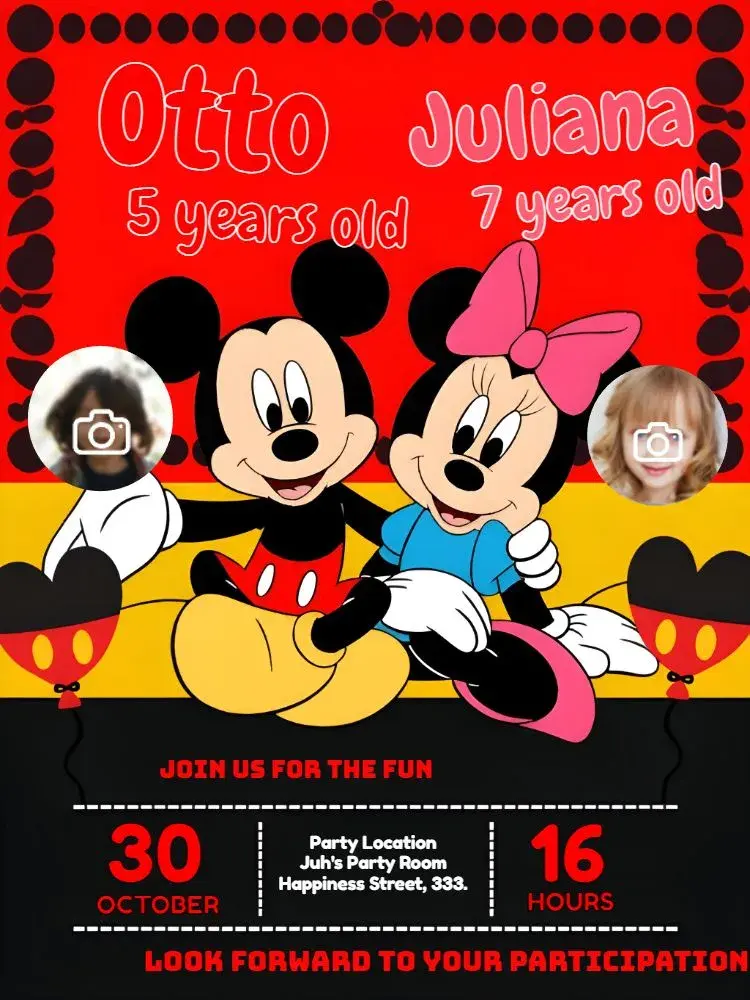
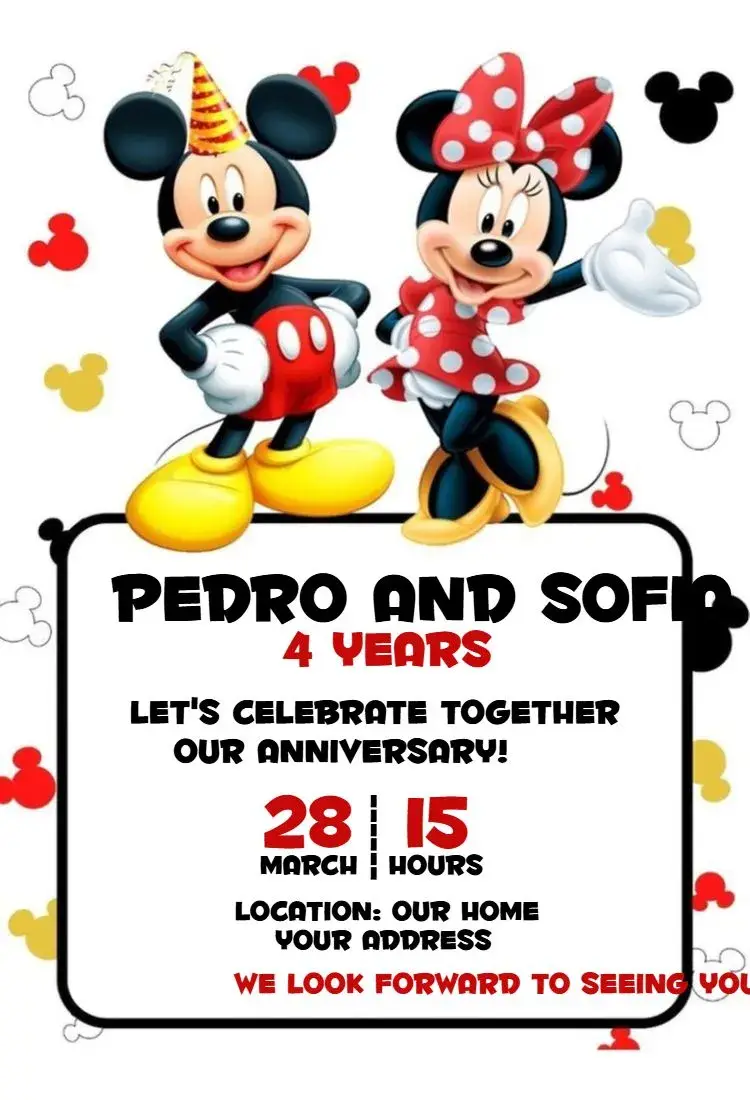
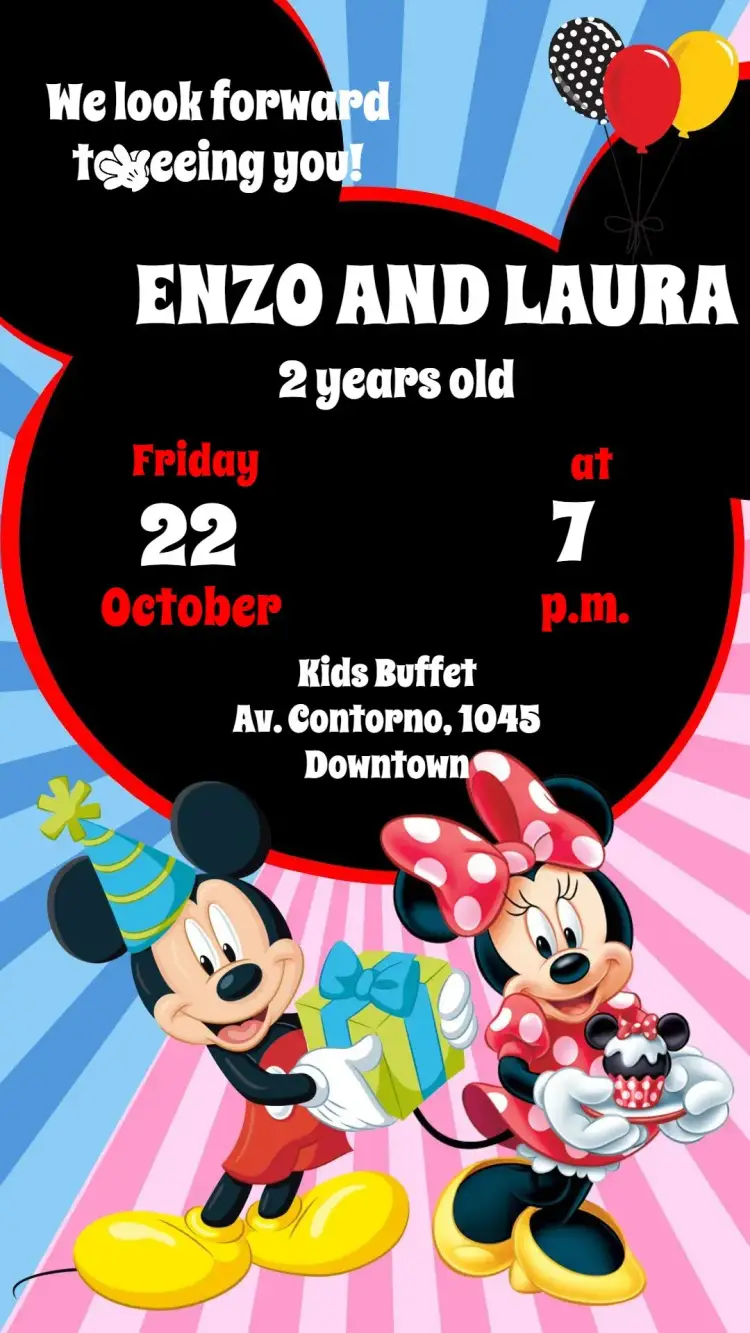
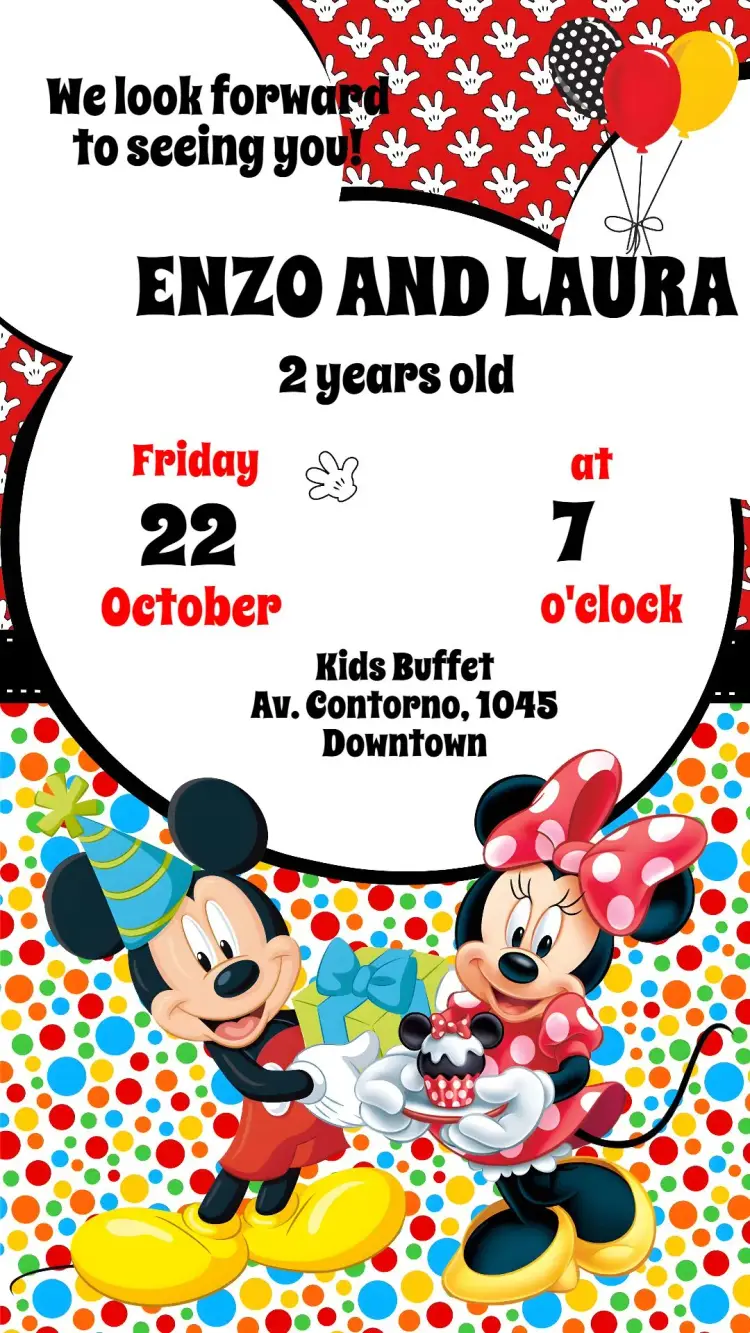
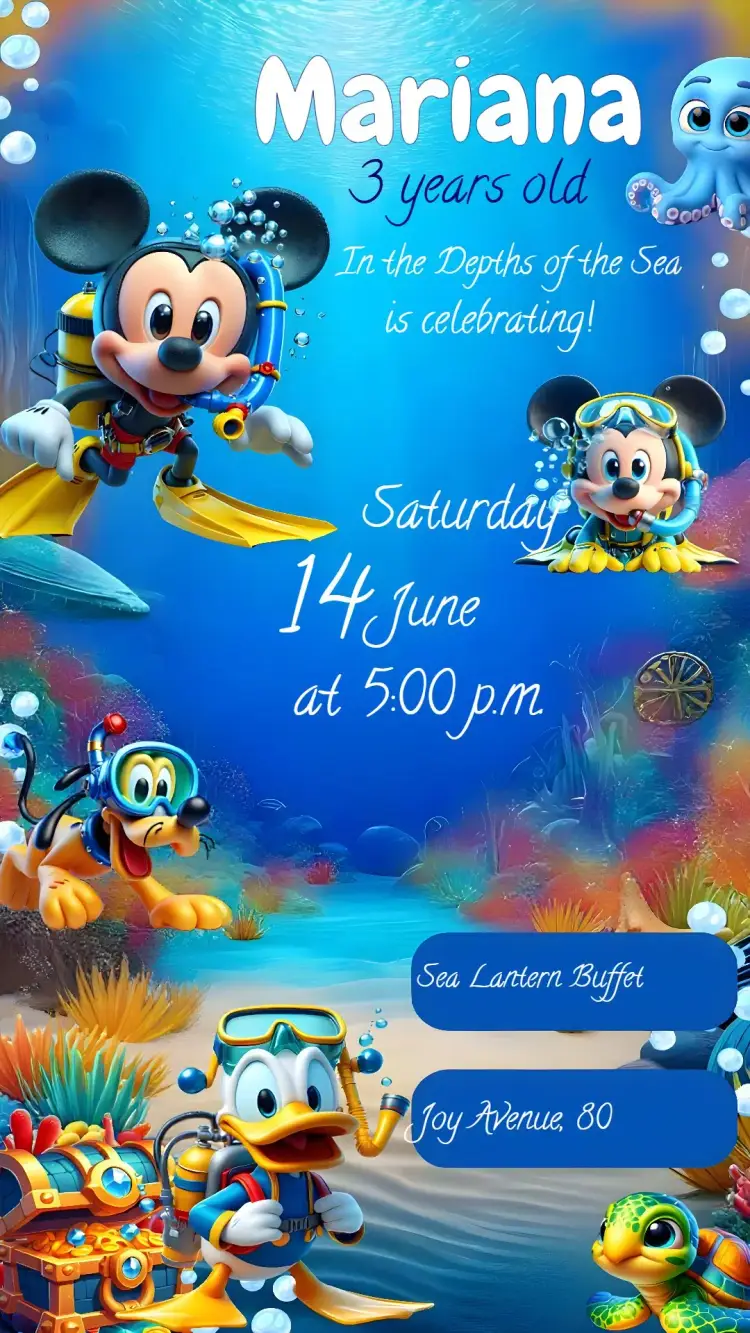
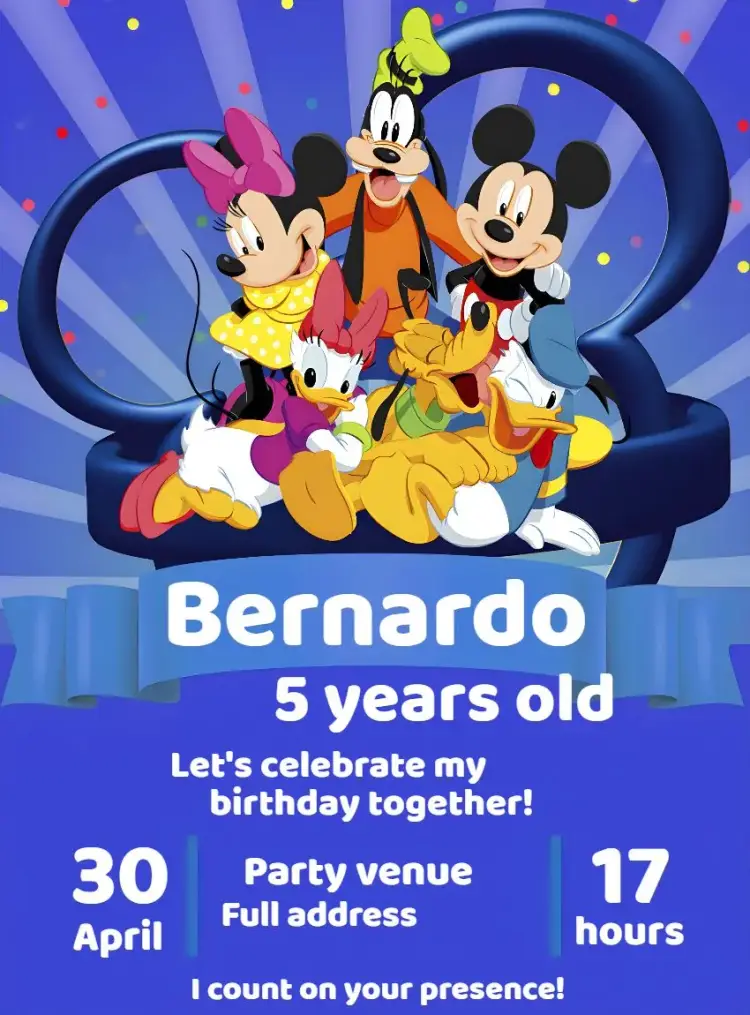
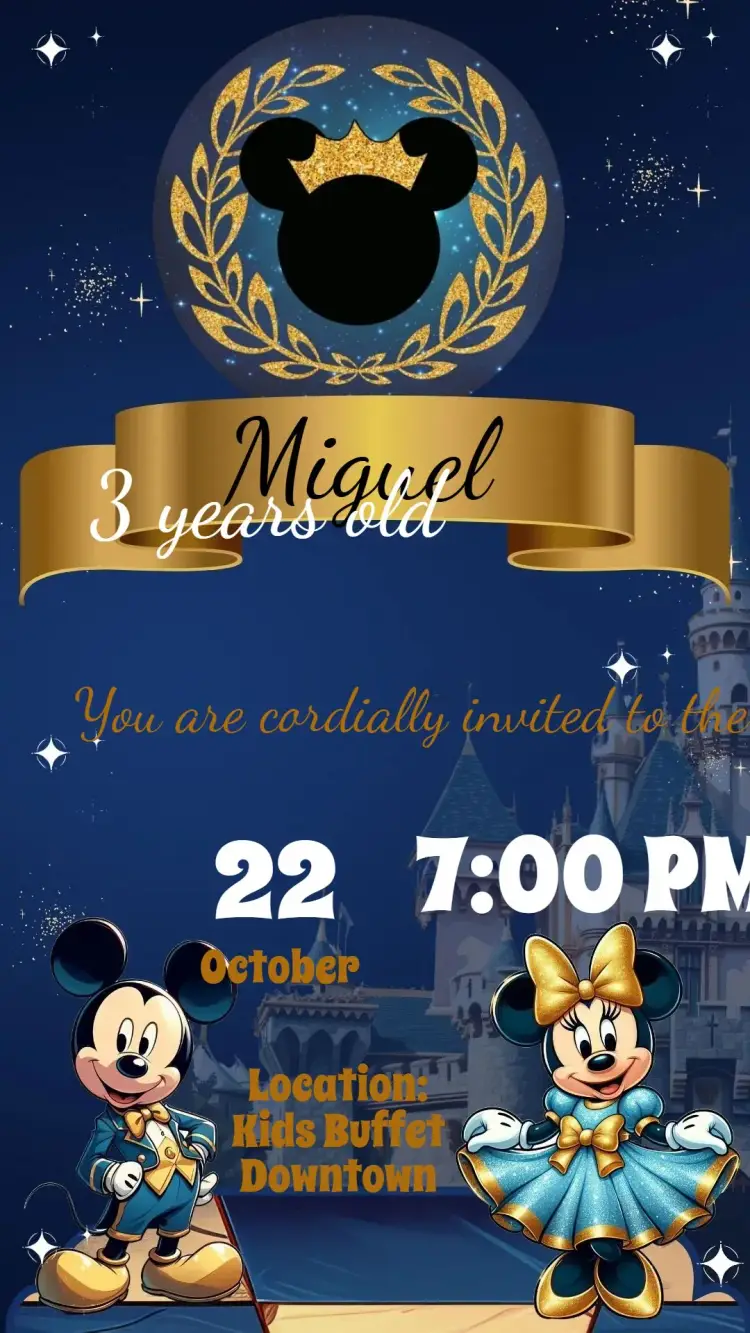
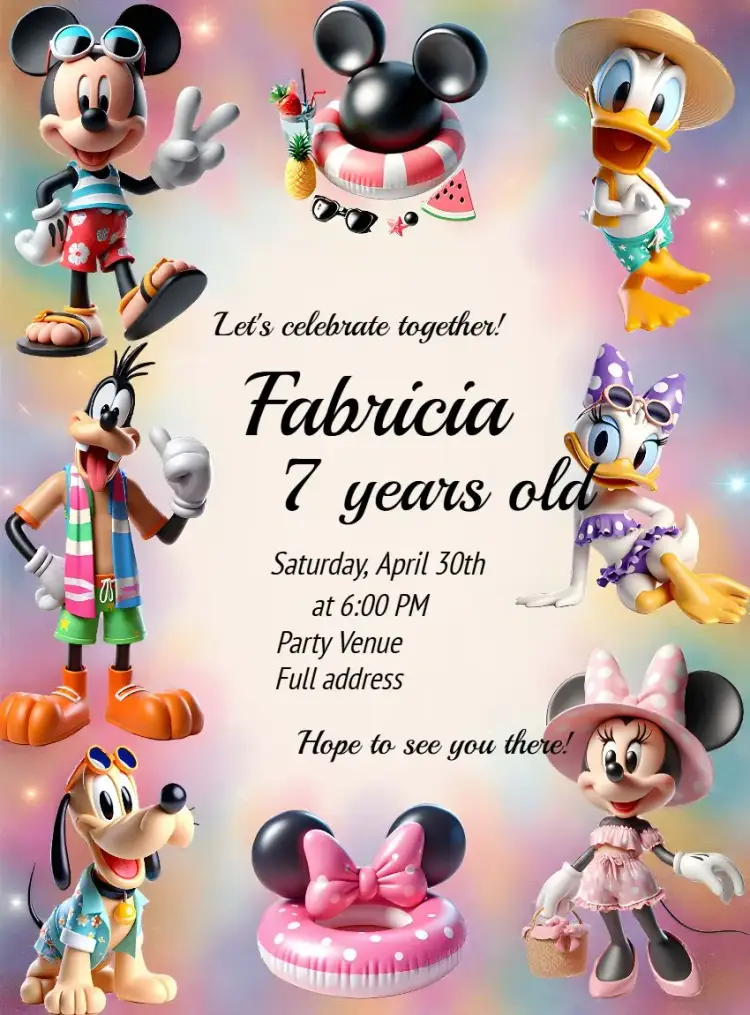
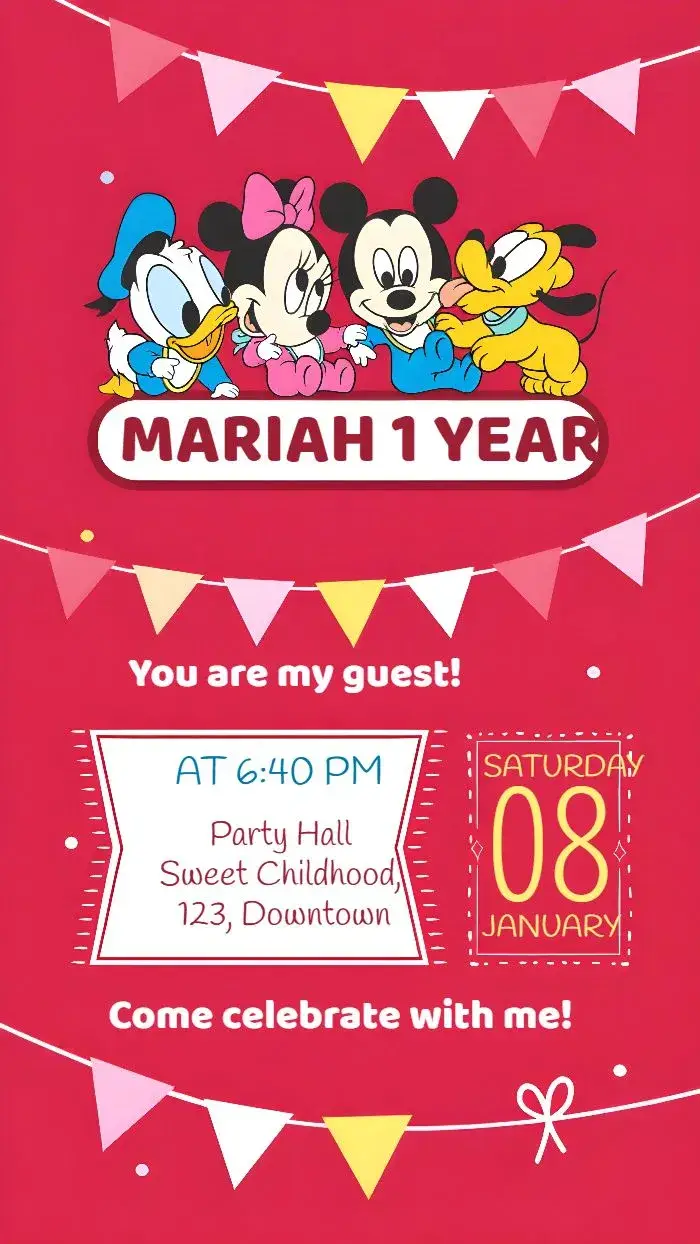
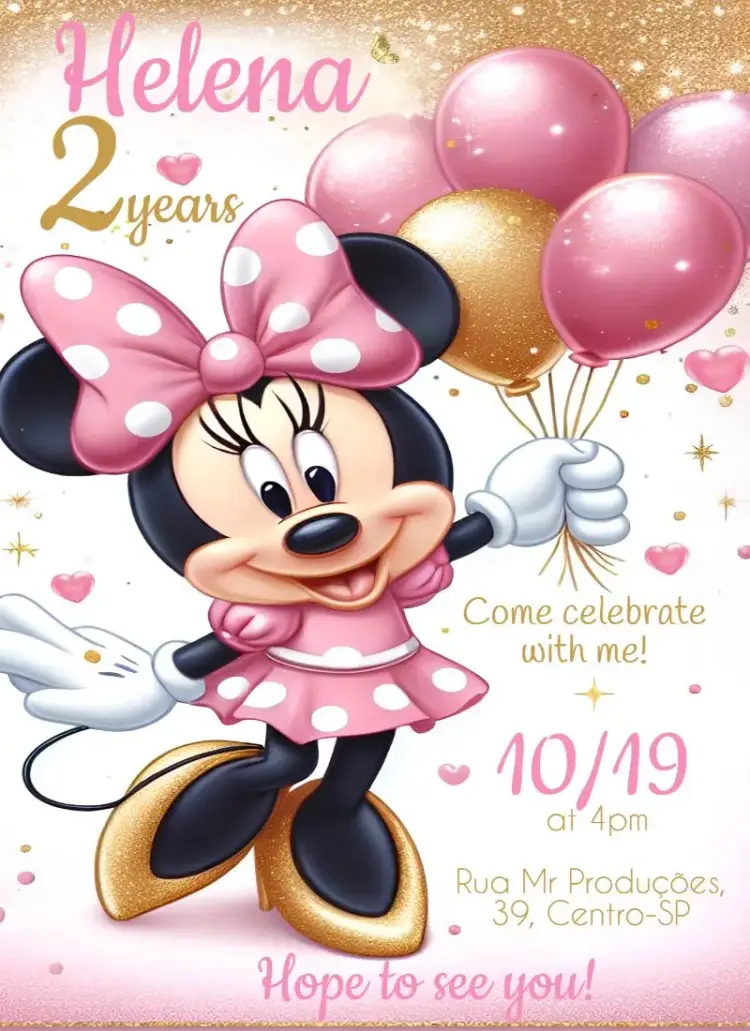
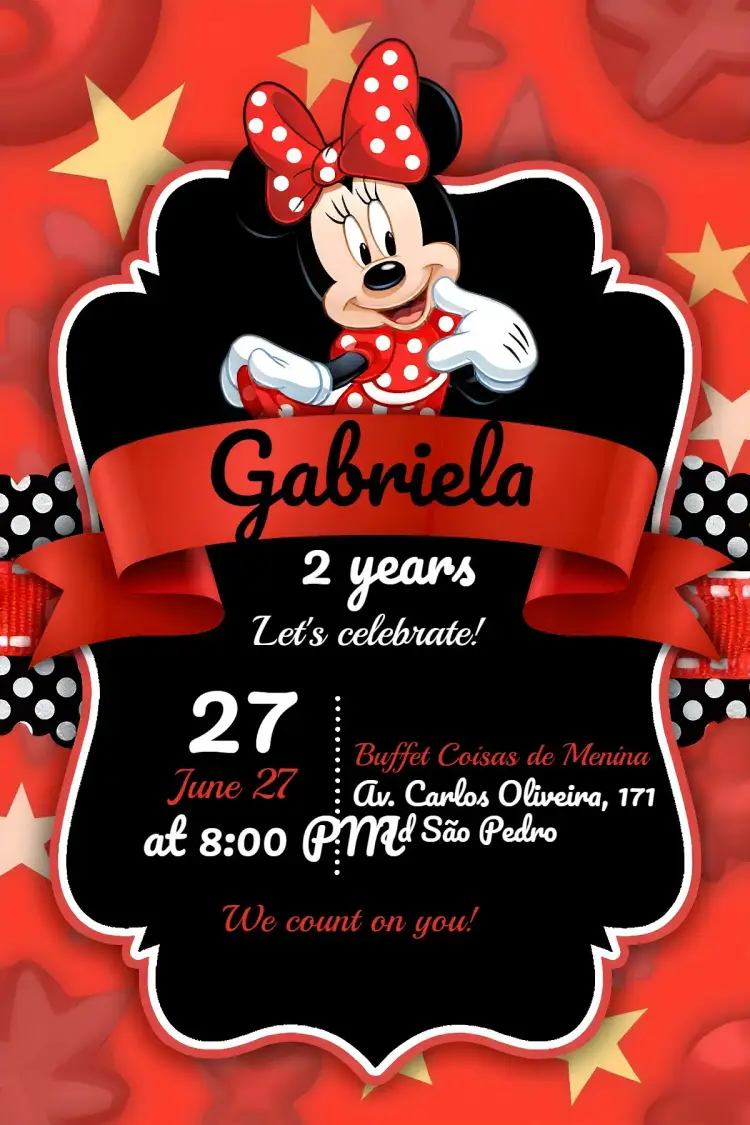
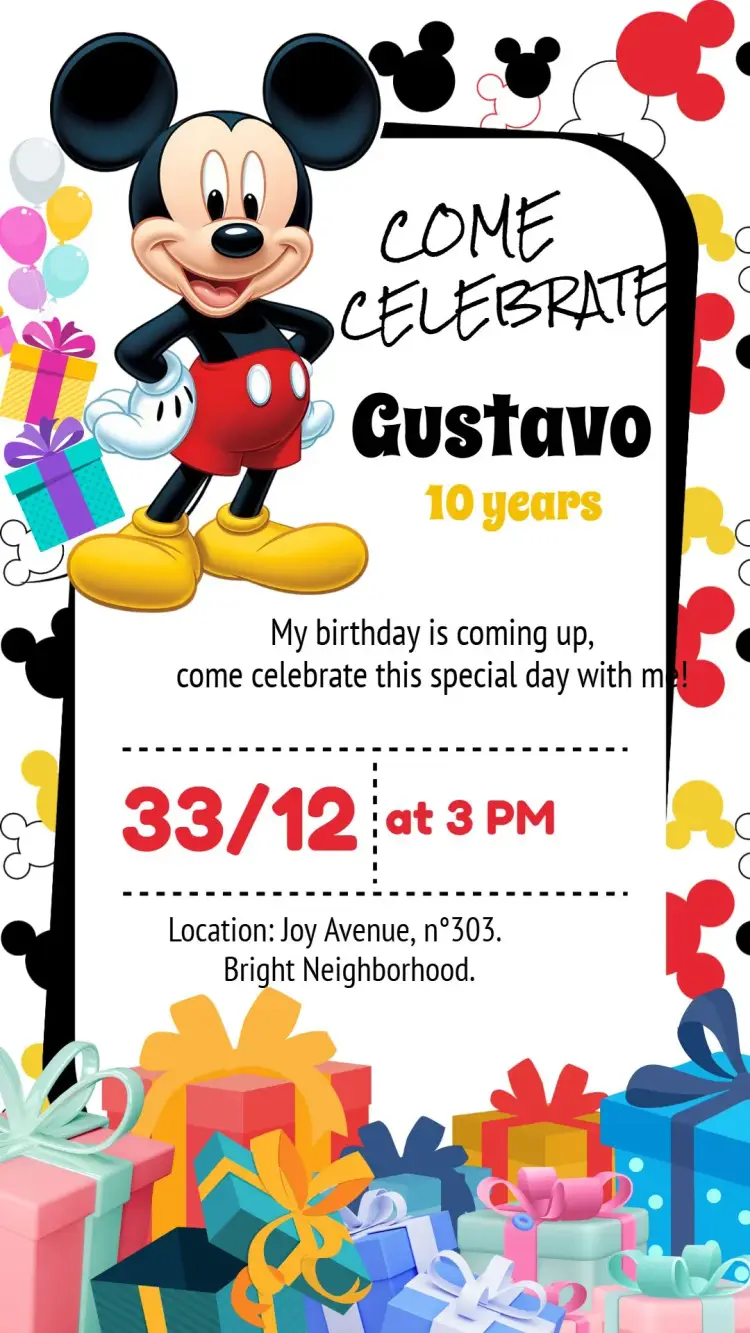
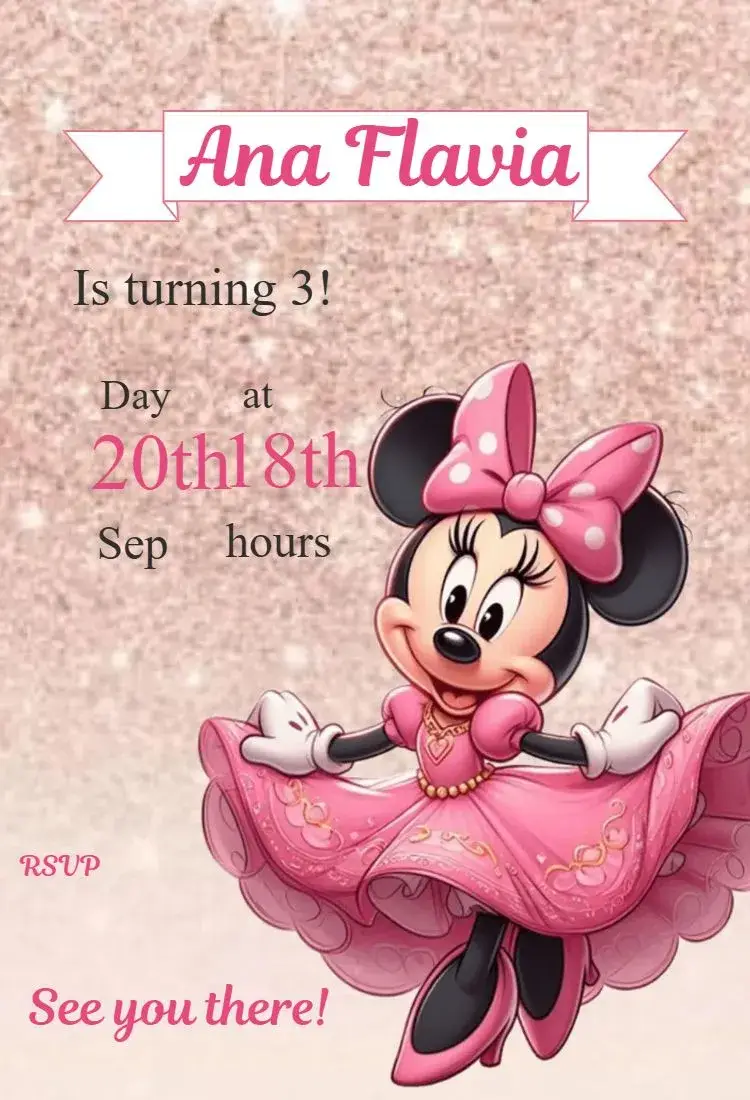
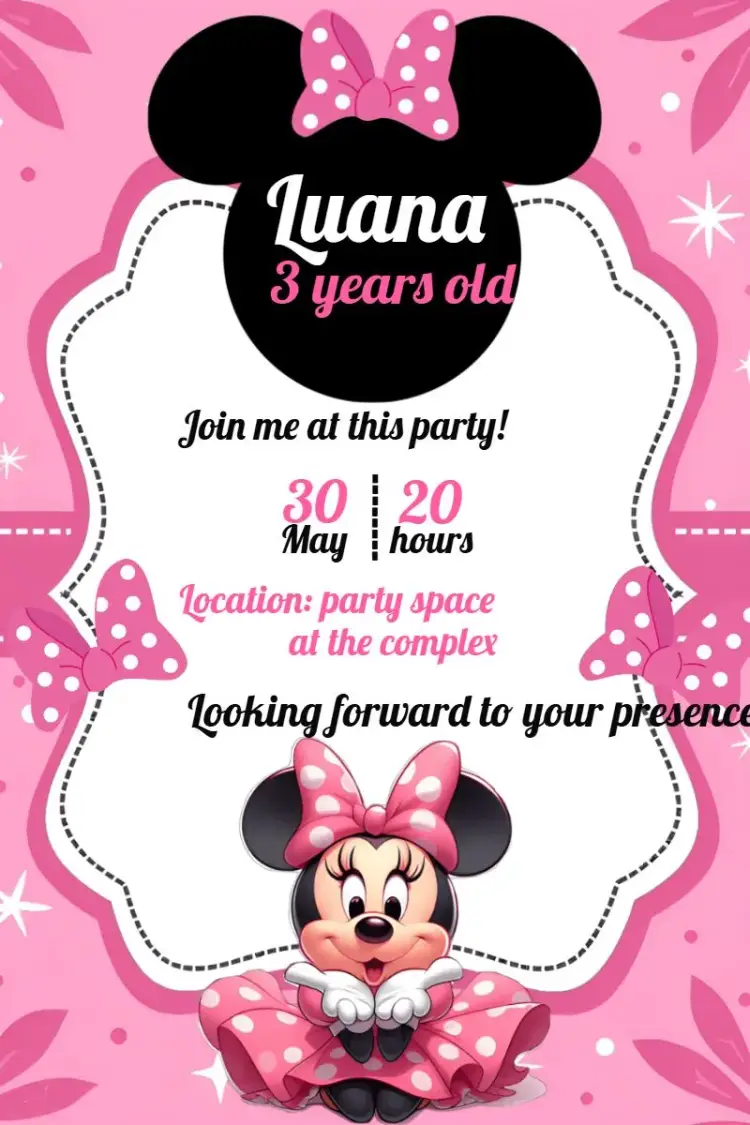
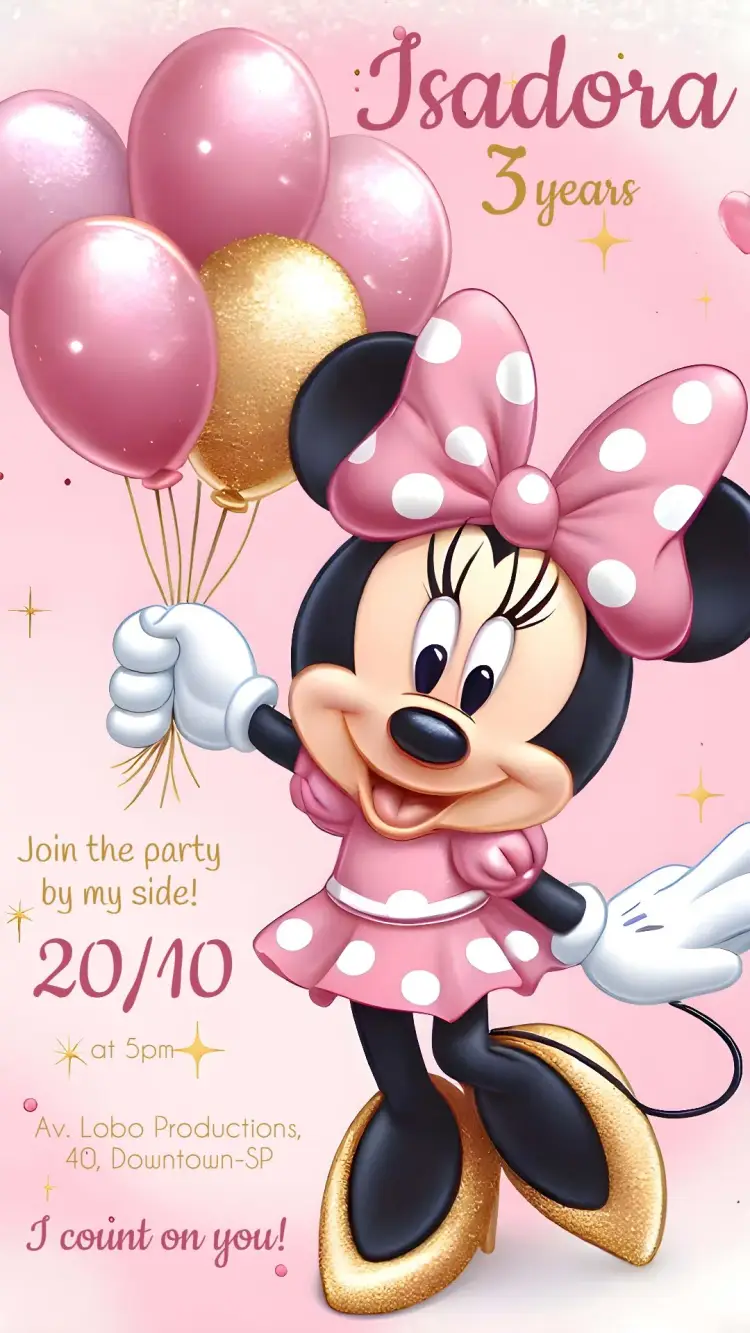
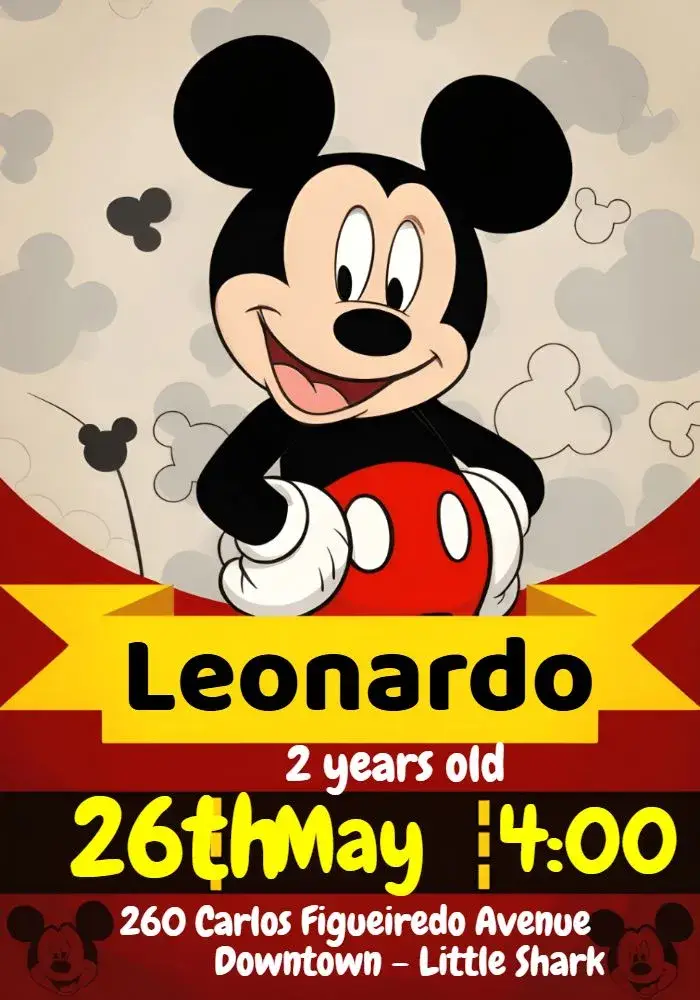
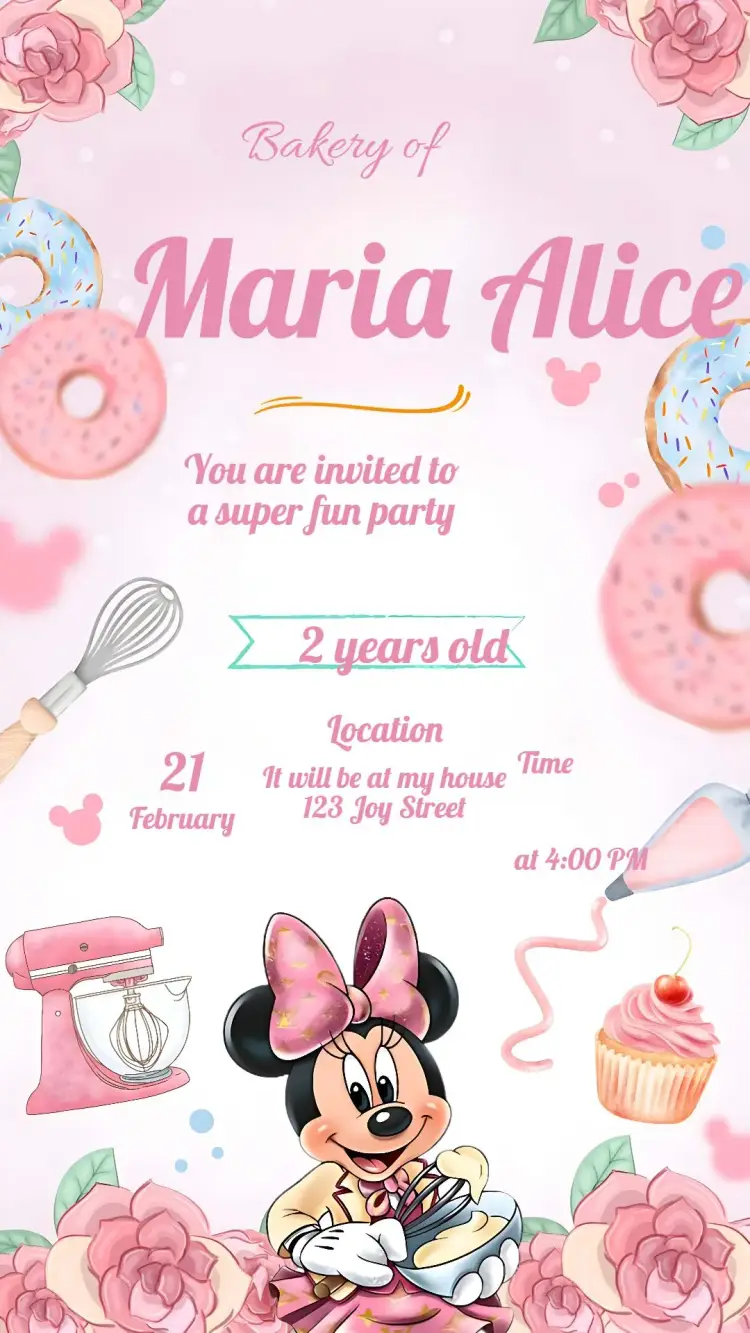
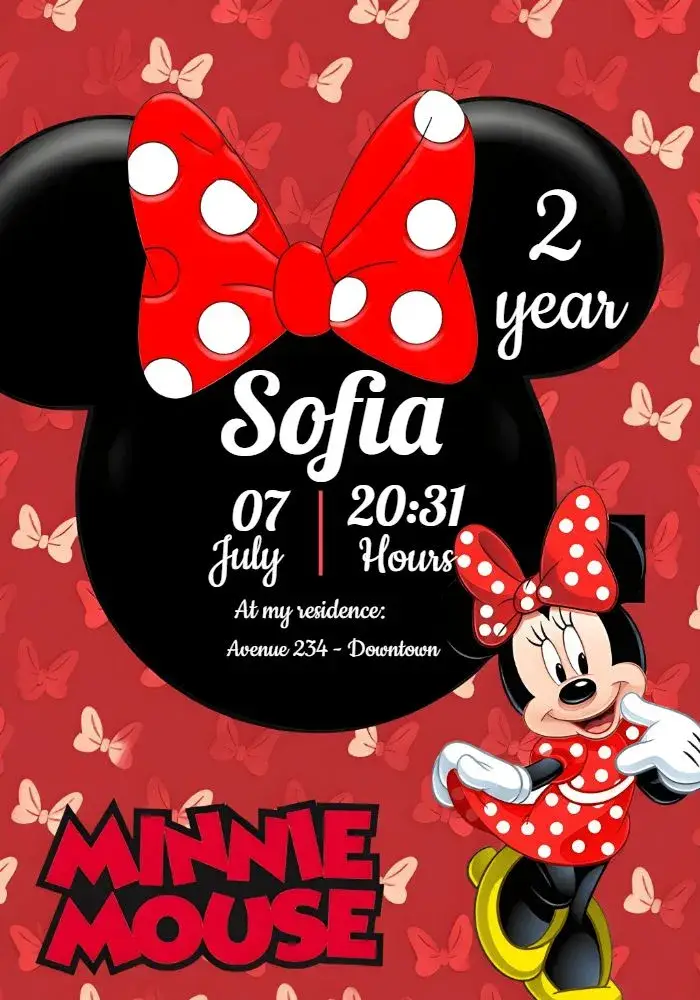
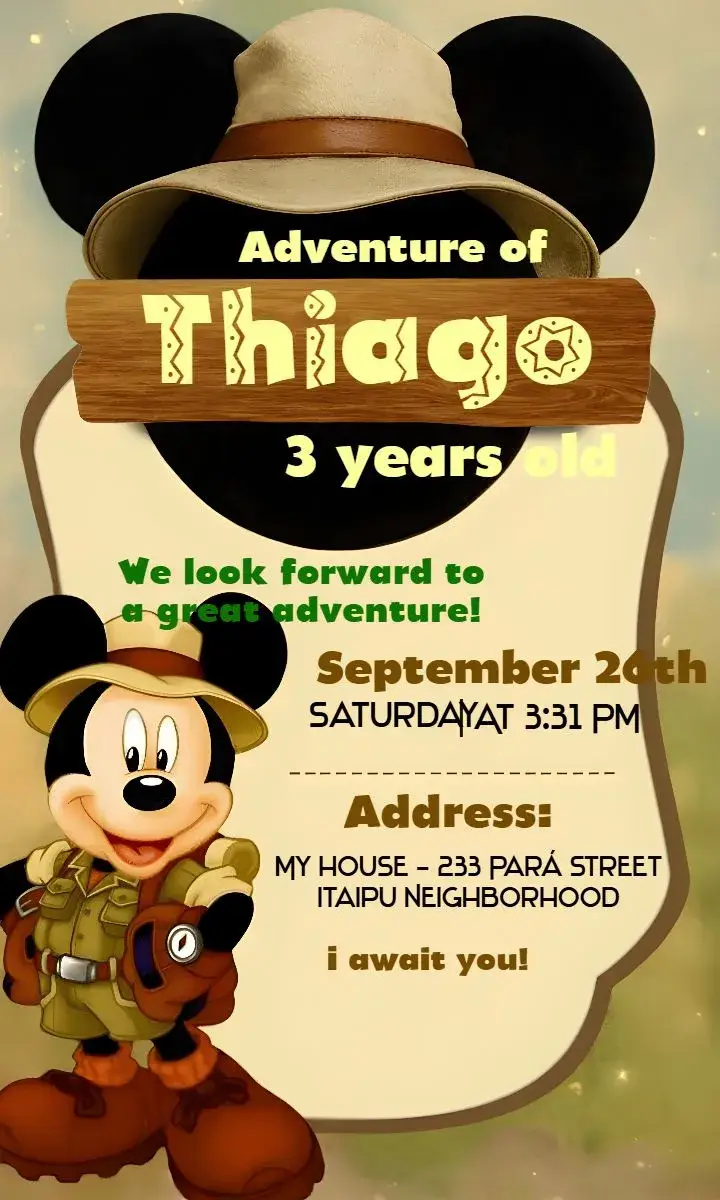
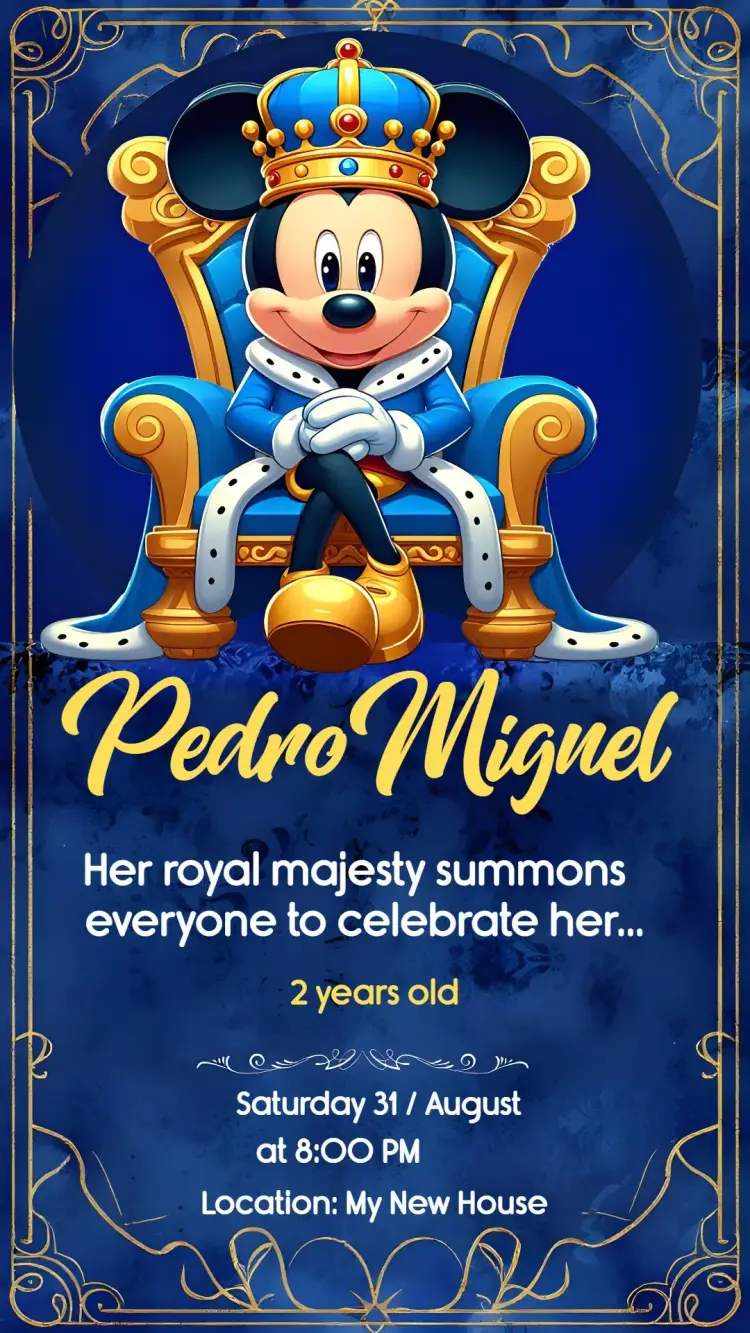
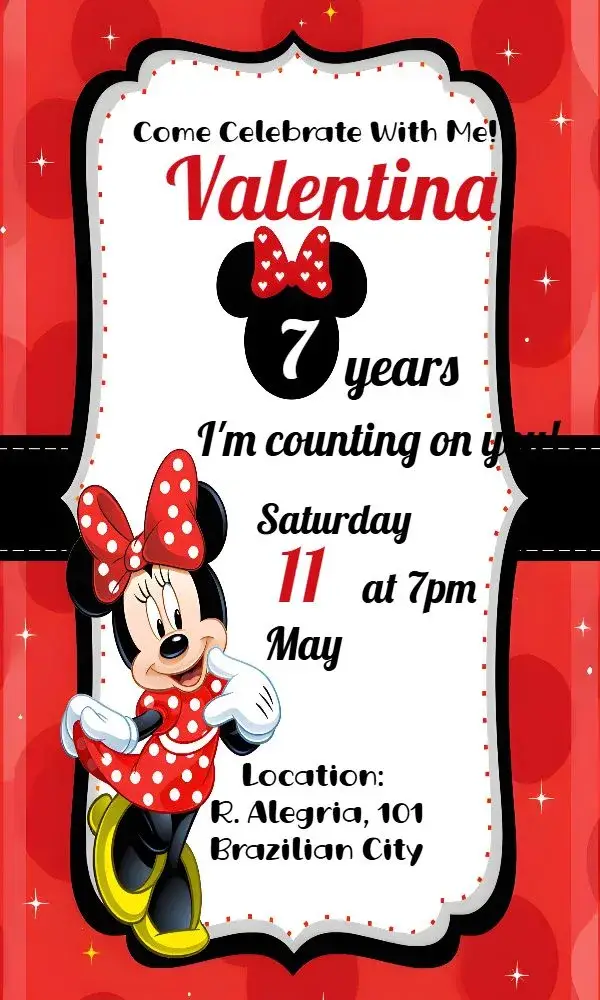
Compare the artwork in this selection and inspect a template before opening the editor. Mickey alone, Minnie alone or both together: pick who appears first, then the color palette.
Curated templates
Choose a design, personalize the event details, and get your invitation ready to share.
About this collection
Classic, baby or themed
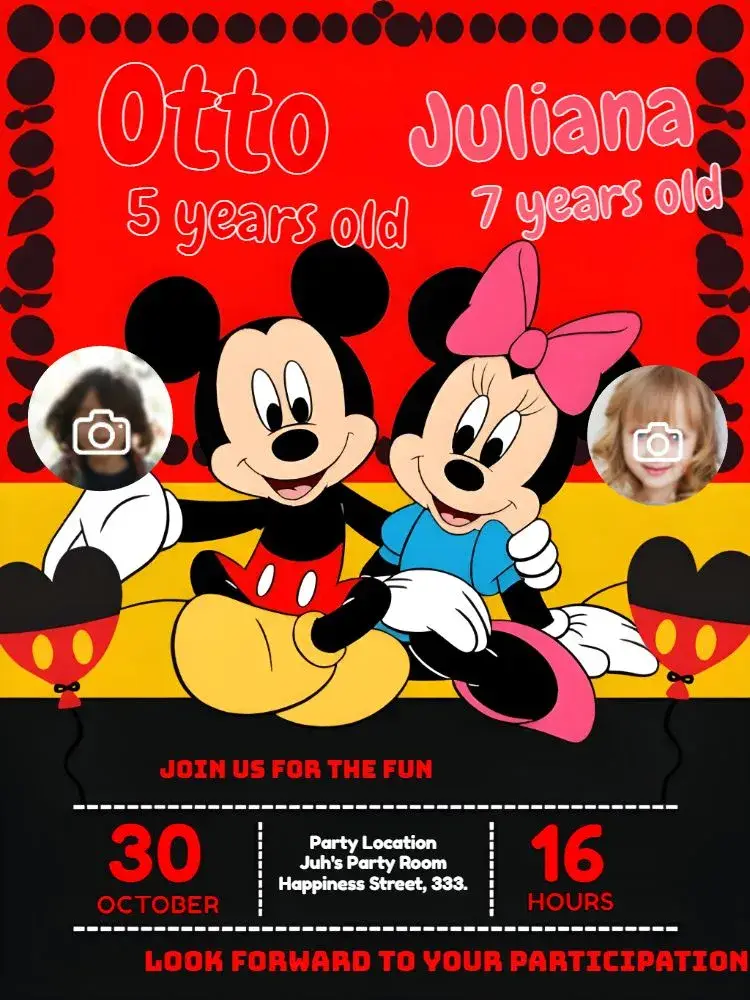
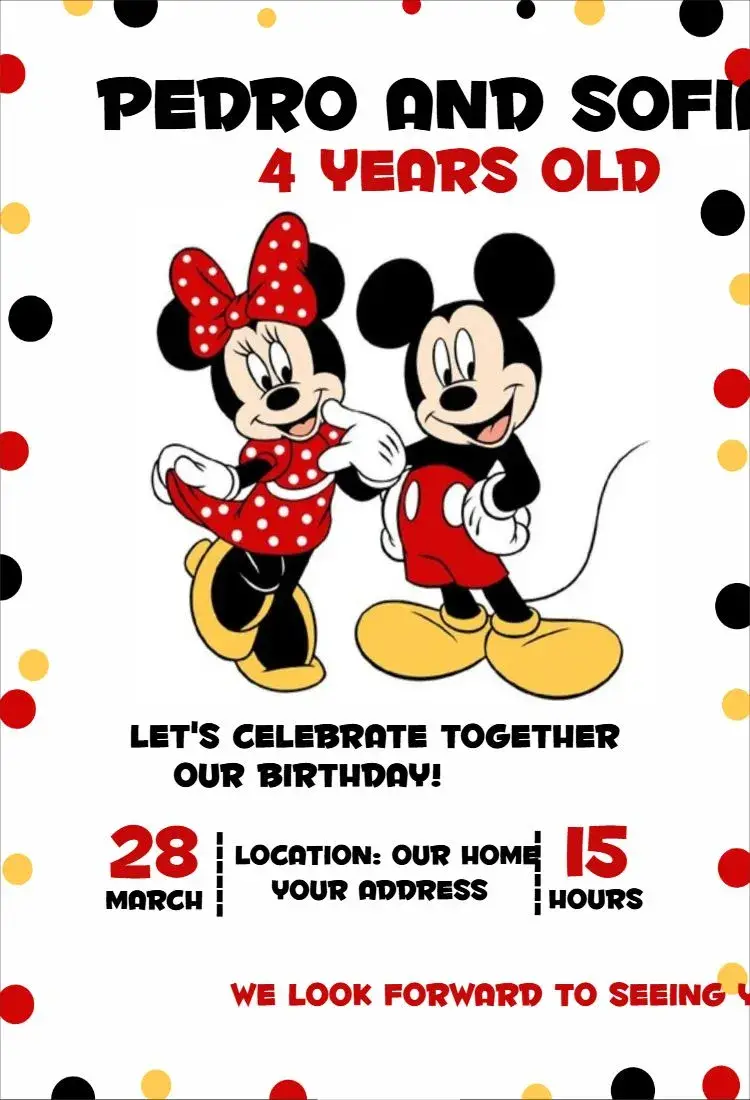
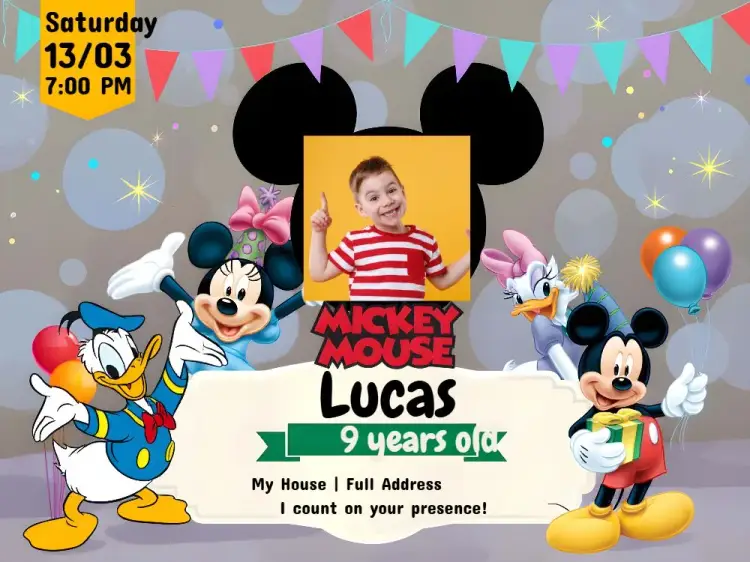
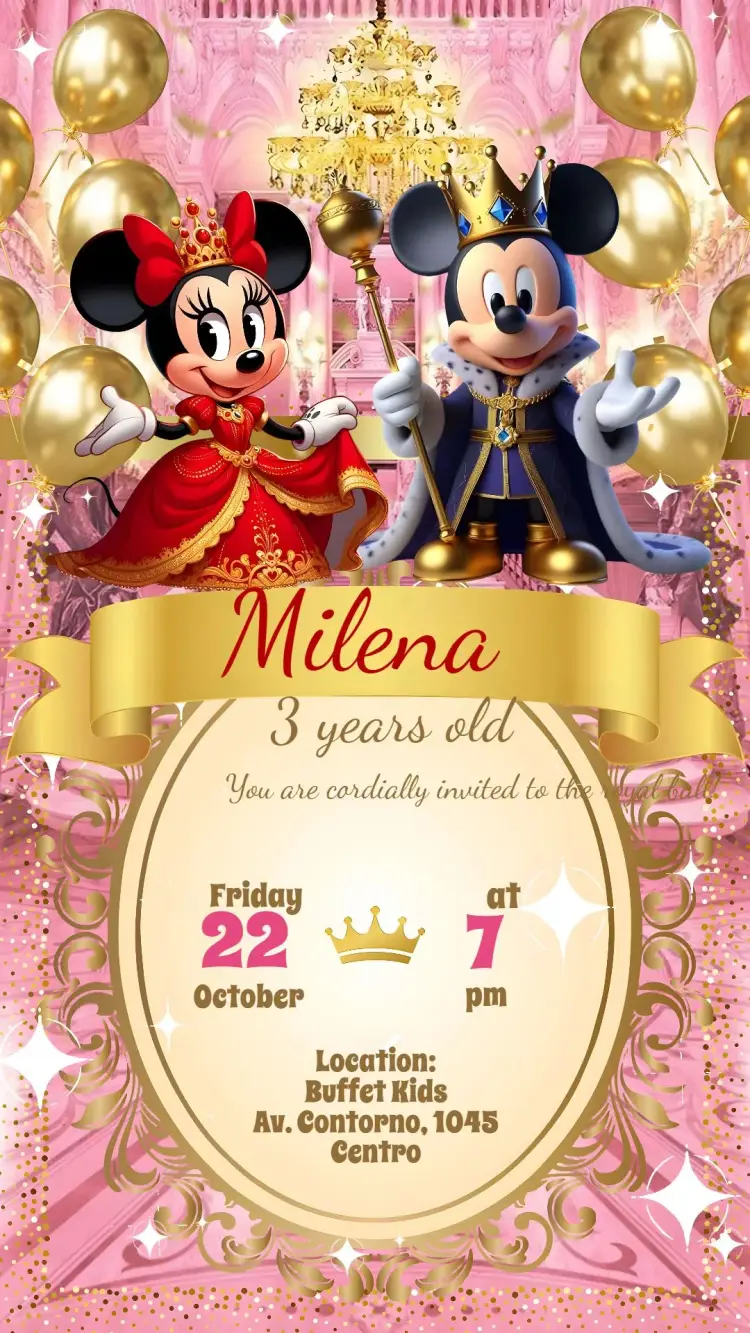
Classic Mickey in red, black and yellow reads very differently from Minnie in pink or red with a bow and polka dots. Baby versions have softer lines and often appear in first birthday and baby shower designs; there are also themes such as safari, royalty or the clubhouse gang. Notice where the character sits and how much open space is left.
One design for each kind of celebration
The pair shows up in birthdays, first birthdays, baby showers and baptisms. Make sure the sample wording matches your occasion and that the age can be changed. For siblings, look for a design with Mickey and Minnie together and room for two names instead of squeezing details into a single-character layout.
Details to confirm before editing
Mickey alone, Minnie alone or both together: pick who appears first, then the color palette. For a first birthday, check that the baby-style artwork matches the decorations and that no other age is printed in the image.
Spell out the month in the date — [Month] [day], [year] — and check the time. Include a.m. or p.m., or use a clearly labeled 24-hour time. For guests in another region, add the city and the time zone when needed rather than relying on an ambiguous numeric date.
Example wording to adapt
The following wording is a suggestion: replace the fields in brackets and remove anything that does not apply to your event.
Come celebrate with [Name], Mickey and Minnie! [Name] is turning [age] on [date] at [time], at [venue]. Please RSVP to [contact] by [deadline].
From the selected template to the editor
Open the selected invitation page, inspect its preview and use the personalization button to enter the editor. Replace the sample details with your event information and check which elements that template allows you to change. To include a photo, choose a design with space for one or check the editor options. Review the result on a phone and check the download options and conditions shown for that template before completing it. Sharing an image does not automatically make the text inside it clickable: send necessary maps and links in the accompanying message too.
Frequently asked questions
Are there Minnie-only invitations?
Look for designs with Minnie in the name and check the preview: some show her alone and others alongside Mickey.
Does the baby version work for a first birthday?
Yes, when the artwork and wording fit the age. Change the sample number if the template allows it and review the whole image.
Can I use the same design for a baby shower?
You can, as long as the wording describes a baby shower rather than a birthday. Adjust the message and confirm that no age appears in the image.
Are these Mickey and Minnie designs official?
No. They are designs created by Convitede authors around the theme, with no official link to the owners of the brand or characters. Choose by the preview and check in the editor what each template lets you change.
How do I open a selected template in the editor?
Open the invitation page, inspect the design and use the personalization button. Replace the example event details. Photo, color and design changes depend on the selected template and the options available in the editor.
Explore related collections
Kids' birthday invitations to customize online
Compare kids' birthday invitation designs, organize the name, age and caregiver instructions, then open a template that suits the actual party.
Birthday invitations you can customize online
Compare birthday invitation designs, organize the name, date and venue, then open a template to personalize the details of your celebration.
Editable princess invitations for kids’ parties
Compare princess invitations with a castle, a crown, a photo or one princess in the spotlight, check room for the name and age and edit your pick.
Invitation wording: customize and copy your message
Build invitation wording for birthdays, weddings, baby showers and graduations. Customize a sample and copy it into your invitation’s editable text fields.
How to print invitations: size, aspect ratio and PDF
Estimate print dimensions and image resolution from pixels. Understand the editor’s one, two or four invitations per A4 PDF sheet options.
Invitations with RSVP: share an event confirmation link
Learn how to create an event from an edited invitation, review RSVP settings and send a published event link for guests to respond.
Create an invitation that feels like yours
Choose a template and edit the wording, colors, and event details directly in your browser.